Kembali ke semua panduan
2026-01-12
Cara Membuat Video Bayi AI
Panduan ini memandu Anda melalui alur kerja paling sederhana: pilih metode yang tepat, gunakan input yang jelas (foto atau prompt), atur rasio yang tepat, dan hasilkan. Ikuti langkahnya dulu, lalu gunakan kembali contoh di bawah.
Langkah Cepat
Daftar cepat yang dapat Anda ikuti dalam waktu kurang dari satu menit.
- 1Buka alat Video Bayi.
- 2Pilih metode: Foto→Video (lebih konsisten) atau Prompt→Video (lebih kreatif).
- 3Gunakan foto depan yang jelas ATAU tulis prompt pendek yang fokus pada gerakan.
- 4Atur rasio aspek (9:16 untuk TikTok/Shorts) dan jaga durasi tetap pendek (mulai dengan 5d).
- 5Hasilkan, lalu iterasi: tingkatkan pemotongan/pencahayaan dan sederhanakan gerakan jika perlu.
- 6Ekspor dan posting (tambahkan teks untuk retensi yang lebih baik).
Opsi alat yang dapat dipilih
Mode:Teks ke VideoGambar ke Video
Rasio aspek:9:1616:9
Durasi:5s10s
Resolusi:480p720p1080p
- Resolusi ditampilkan saat Anda mengaktifkan Audio di mode Gambar ke Video.
Contoh Tutorial (dengan prompt & pengaturan)
Setiap contoh di bawah ini dipilih sebelumnya untuk panduan ini (tidak acak).
Contoh 1
Video bayi realistis (prompt → video)
Text-to-Videobaby-video
Cara menggunakan contoh ini
- 1.Buka alat.
- 2.Pilih mode: Text-to-Video.
- 3.Tidak perlu file input (hanya prompt).
- 4.Gunakan kata kunci (atau prompt lengkap) dan pilih pengaturan.
- 5.Hasilkan dan ulangi (potong/pencahayaan/prompt) jika perlu.
Kata kunci prompt
A warm morning in a cozy nurserya 9-month-old baby sitting on a soft bednatural smileblinking and gently waving at the camerasun rays filtering through sheer curtainsdreamy bokehshallow depth of fieldhandheld slow push-in shot
Tampilkan prompt lengkap (salin)
A warm morning in a cozy nursery, a 9-month-old baby sitting on a soft bed, natural smile, blinking and gently waving at the camera, sun rays filtering through sheer curtains, dreamy bokeh, shallow depth of field, handheld slow push-in shot, soft pastel colors, cinematic, ultra-realistic, 4K resolution, 24 frames per second, 5-second clip.
Pengaturan (digunakan dalam contoh ini)
Contoh 2
Animasikan foto bayi (foto → video)
Image-to-Videobaby-video
Cara menggunakan contoh ini
- 1.Buka alat.
- 2.Pilih mode: Image-to-Video.
- 3.Unggah input yang ditampilkan di bawah.
- 4.Gunakan kata kunci (atau prompt lengkap) dan pilih pengaturan.
- 5.Hasilkan dan ulangi (potong/pencahayaan/prompt) jika perlu.
Input
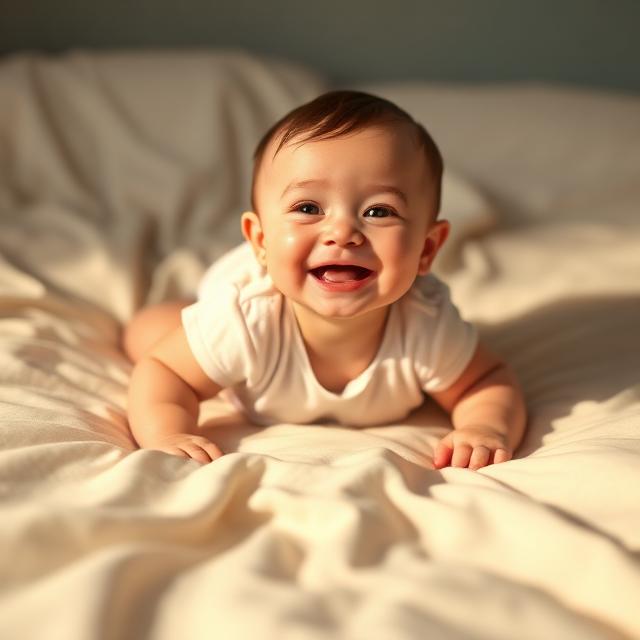
Image
Pengaturan (digunakan dalam contoh ini)
Contoh 3
Gerakan gaya template (foto → video)
Image-to-Videobaby-video
Cara menggunakan contoh ini
- 1.Buka alat.
- 2.Pilih mode: Image-to-Video.
- 3.Unggah input yang ditampilkan di bawah.
- 4.Gunakan kata kunci (atau prompt lengkap) dan pilih pengaturan.
- 5.Hasilkan dan ulangi (potong/pencahayaan/prompt) jika perlu.
Input
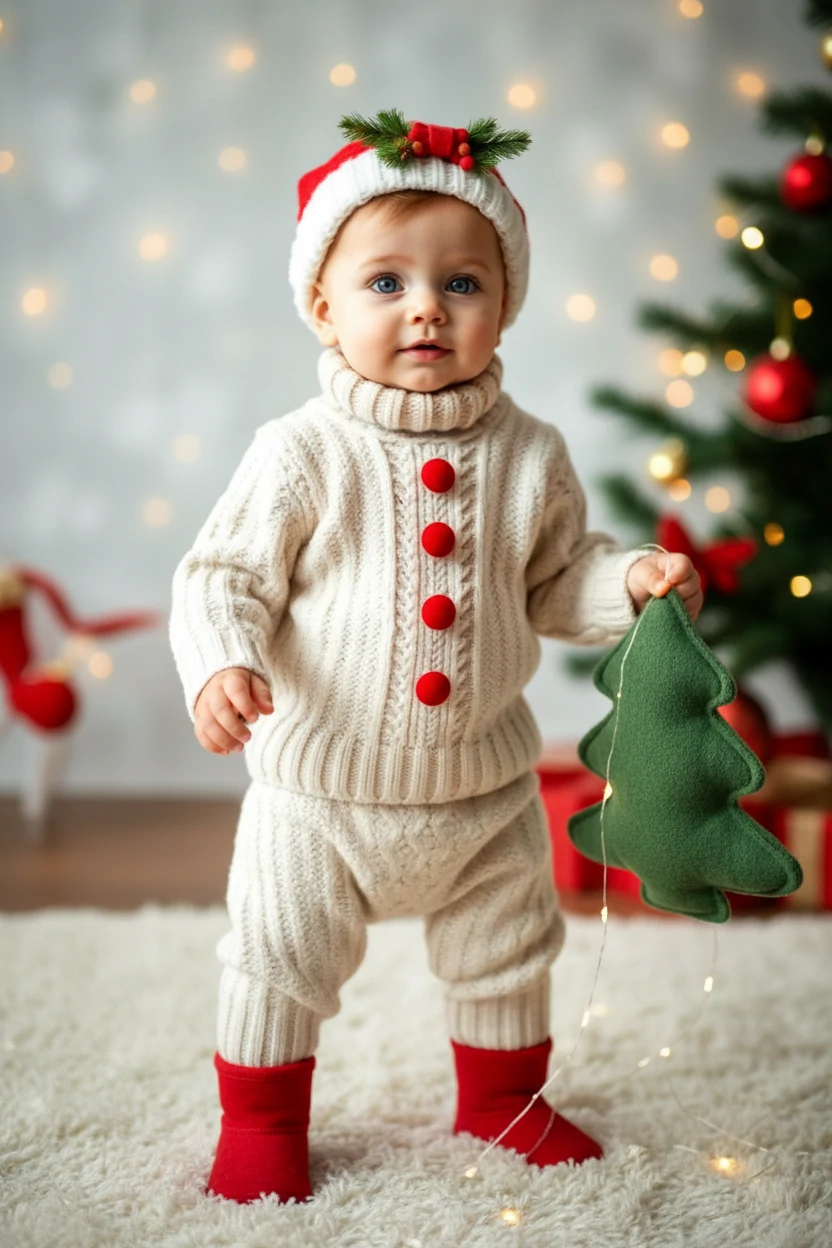
Template
Kata kunci prompt
The person in the picture exhibits an unsteady gait as they awkwardly approach the camerareminiscent of a novice walker
Tampilkan prompt lengkap (salin)
The person in the picture exhibits an unsteady gait as they awkwardly approach the camera, reminiscent of a novice walker.
Pengaturan (digunakan dalam contoh ini)
Tips
- Jaga gerakan tetap sederhana (kedip, senyum, lambaian). Tindakan kompleks meningkatkan artefak.
- Perketat pemotongan agar wajah lebih besar, tapi sertakan bahu untuk mengurangi goyangan.
- Gunakan latar bersih dan pencahayaan yang baik untuk wajah yang lebih realistis.
- Ubah satu variabel per iterasi (prompt ATAU pemotongan ATAU rasio) untuk belajar lebih cepat.
FAQ
Metode mana yang terbaik untuk hasil realistis?▼
Foto→Video biasanya lebih konsisten untuk wajah realistis, terutama ketika Anda mulai dari foto bayi yang tajam.
Rasio aspek apa yang harus saya gunakan?▼
Gunakan 9:16 untuk TikTok/Shorts. Gunakan 16:9 untuk YouTube. Sesuaikan dengan platform target Anda dari awal.
Mengapa wajah terlihat tidak stabil atau kabur?▼
Sebagian besar masalah berasal dari input berkualitas rendah atau pemotongan yang terlalu ketat/salah. Gunakan foto yang lebih jelas, jaga wajah tetap di tengah, dan kurangi kompleksitas gerakan.
Siap untuk menghasilkan?
Buka alat dan gunakan kembali prompt/pengaturan di atas.