Torna a tutte le guide
2026-01-12
Come Creare Video Bambino IA
Questa guida ti accompagna attraverso il flusso di lavoro più semplice: scegli il metodo giusto, usa un input chiaro (foto o prompt), imposta il rapporto giusto e genera. Segui prima i passaggi, poi riutilizza gli esempi seguenti.
Passaggi rapidi
Una lista rapida che puoi seguire in meno di un minuto.
- 1Apri lo strumento Video Bambino.
- 2Scegli un metodo: Foto→Video (più coerente) o Prompt→Video (più creativo).
- 3Usa una foto chiara frontale OPPURE scrivi un prompt breve focalizzato sul movimento.
- 4Imposta il rapporto d'aspetto (9:16 per TikTok/Shorts) e mantieni la durata breve (inizia con 5s).
- 5Genera, poi itera: migliora ritaglio/illuminazione e semplifica il movimento se necessario.
- 6Esporta e pubblica (aggiungi didascalie per una migliore retention).
Opzioni dello strumento disponibili
Modalità:Testo a videoImmagine a video
Rapporto d'aspetto:9:1616:9
Durata:5s10s
Risoluzione:480p720p1080p
- La risoluzione viene mostrata quando abiliti l'audio in modalità Immagine a Video.
Esempi del tutorial (con prompt e impostazioni)
Ogni esempio qui sotto è preselezionato per questa guida (non casuale).
Esempio 1
Video realistico del bebè (prompt → video)
Text-to-Videobaby-video
Come usare questo esempio
- 1.Apri lo strumento.
- 2.Scegli la modalità: Text-to-Video.
- 3.Nessun file di input necessario (solo prompt).
- 4.Usa le parole chiave (o il prompt completo) e scegli le impostazioni.
- 5.Genera e itera (ritaglio/illuminazione/prompt) se necessario.
Parole chiave del prompt
A warm morning in a cozy nurserya 9-month-old baby sitting on a soft bednatural smileblinking and gently waving at the camerasun rays filtering through sheer curtainsdreamy bokehshallow depth of fieldhandheld slow push-in shot
Mostra prompt completo (copia)
A warm morning in a cozy nursery, a 9-month-old baby sitting on a soft bed, natural smile, blinking and gently waving at the camera, sun rays filtering through sheer curtains, dreamy bokeh, shallow depth of field, handheld slow push-in shot, soft pastel colors, cinematic, ultra-realistic, 4K resolution, 24 frames per second, 5-second clip.
Impostazioni (usate in questo esempio)
Esempio 2
Animare una foto di bebè (foto → video)
Image-to-Videobaby-video
Come usare questo esempio
- 1.Apri lo strumento.
- 2.Scegli la modalità: Image-to-Video.
- 3.Carica l'input mostrato qui sotto.
- 4.Usa le parole chiave (o il prompt completo) e scegli le impostazioni.
- 5.Genera e itera (ritaglio/illuminazione/prompt) se necessario.
Input
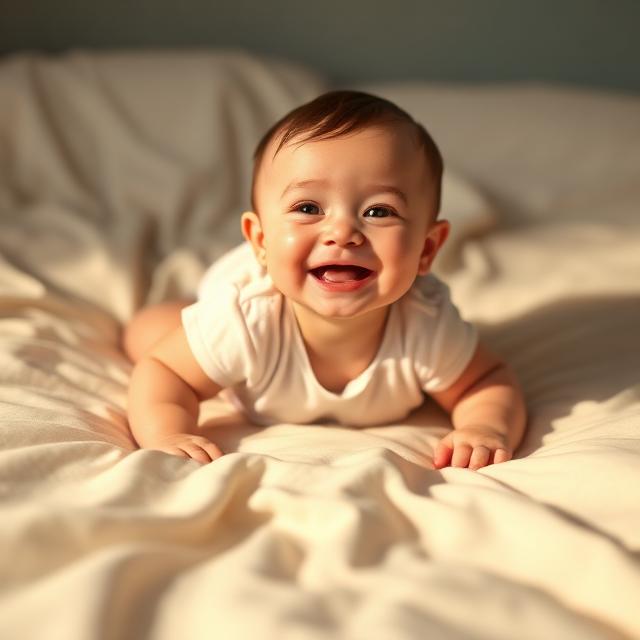
Image
Impostazioni (usate in questo esempio)
Esempio 3
Movimento stile modello (foto → video)
Image-to-Videobaby-video
Come usare questo esempio
- 1.Apri lo strumento.
- 2.Scegli la modalità: Image-to-Video.
- 3.Carica l'input mostrato qui sotto.
- 4.Usa le parole chiave (o il prompt completo) e scegli le impostazioni.
- 5.Genera e itera (ritaglio/illuminazione/prompt) se necessario.
Input
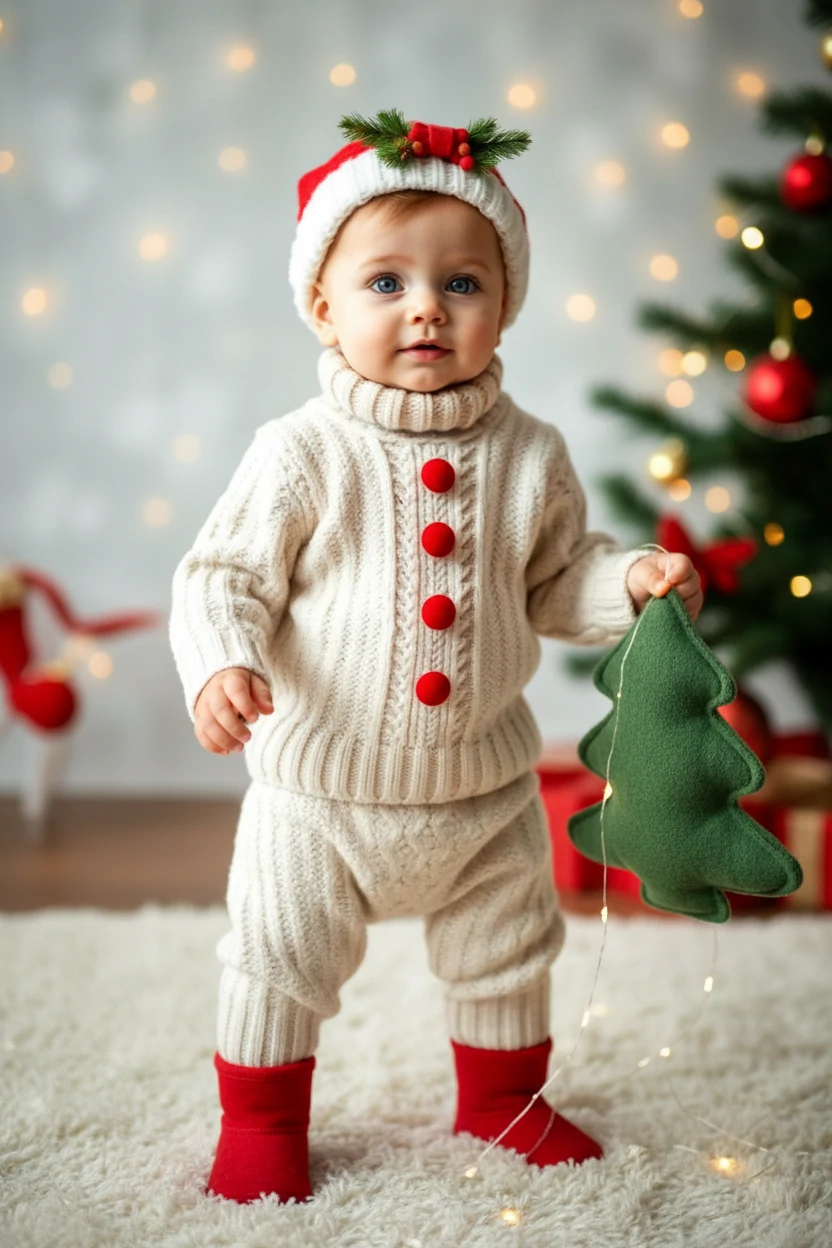
Template
Parole chiave del prompt
The person in the picture exhibits an unsteady gait as they awkwardly approach the camerareminiscent of a novice walker
Mostra prompt completo (copia)
The person in the picture exhibits an unsteady gait as they awkwardly approach the camera, reminiscent of a novice walker.
Impostazioni (usate in questo esempio)
Suggerimenti
- Mantieni il movimento semplice (sbattere le palpebre, sorridere, salutare). Azioni complesse aumentano gli artefatti.
- Stringi il ritaglio in modo che il viso sia più grande, ma includi le spalle per ridurre l'oscillazione.
- Usa sfondi puliti e buona illuminazione per visi più realistici.
- Cambia una variabile per iterazione (prompt O ritaglio O rapporto) per imparare più velocemente.
Domande frequenti
Quale metodo è migliore per risultati realistici?▼
Foto→Video è solitamente più coerente per visi realistici, specialmente quando si parte da una foto nitida del bambino.
Quale rapporto d'aspetto dovrei usare?▼
Usa 9:16 per TikTok/Shorts. Usa 16:9 per YouTube. Adatta la piattaforma target dall'inizio.
Perché il viso appare instabile o sfocato?▼
La maggior parte dei problemi deriva da input di bassa qualità o ritagli troppo stretti/errati. Usa una foto più chiara, mantieni il viso centrato e riduci la complessità del movimento.
Pronto per generare?
Apri lo strumento e riutilizza i prompt/impostazioni sopra.