返回所有教程
2026-01-12
AI换脸视频
换脸在干净的输入下效果最好:清晰的源视频和锐利的面部图像。保持角度相似,避免严重模糊。
快速步骤
一分钟内可以完成的快速清单。
- 1打开换脸工具。
- 2上传源视频(你想修改的视频)。
- 3上传清晰的面部图像(正面,良好光照)。
- 4生成并查看结果。
- 5如果看起来不对,使用更清晰的面部图像和更干净的源视频。
Tool options you can choose
Modes:VideoImage
- Video is limited to 30s.
- No aspect ratio setting (keeps source).
教程示例(包含提示词和设置)
以下每个示例都是为本指南预先选择的(非随机)。
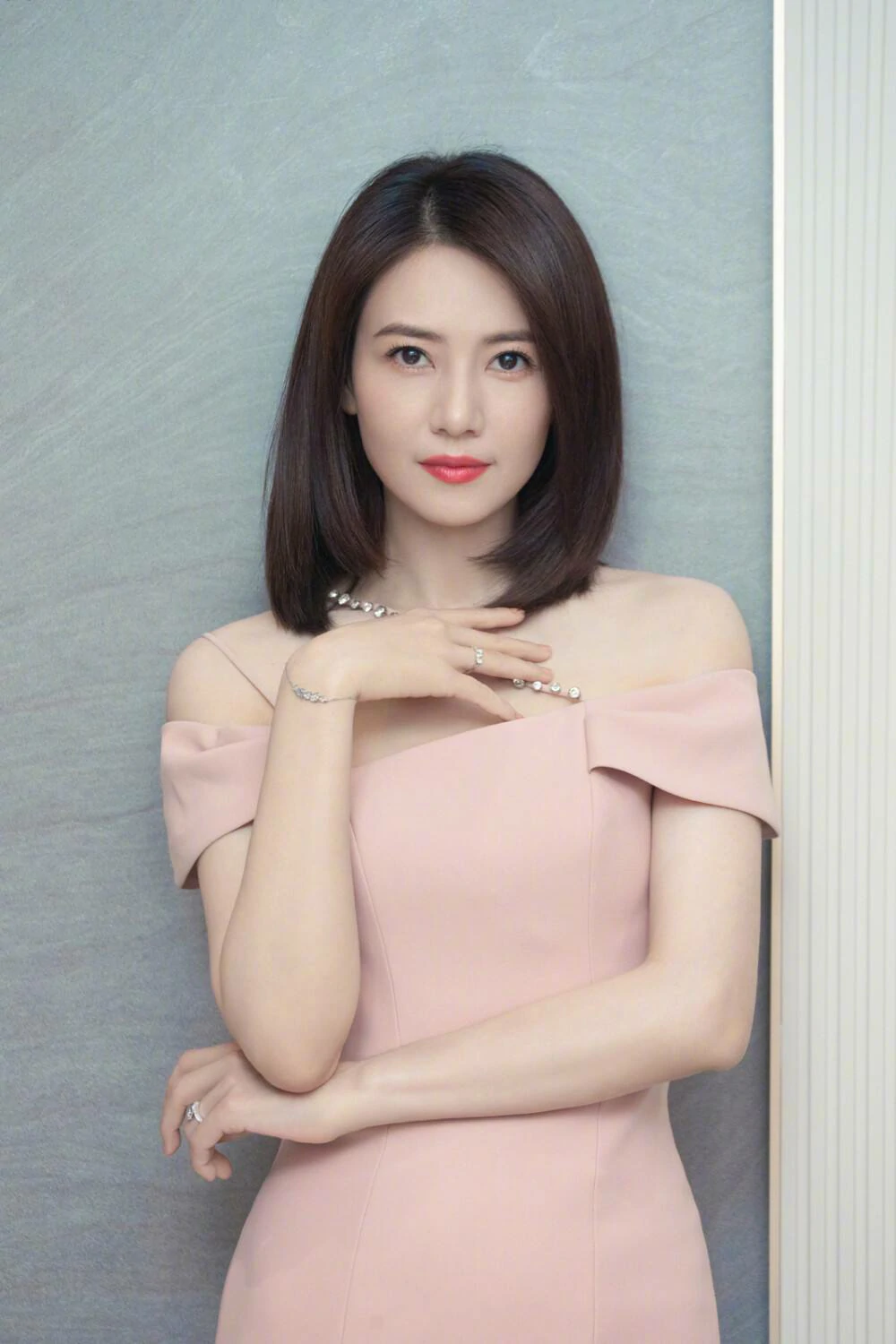
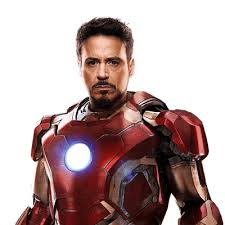
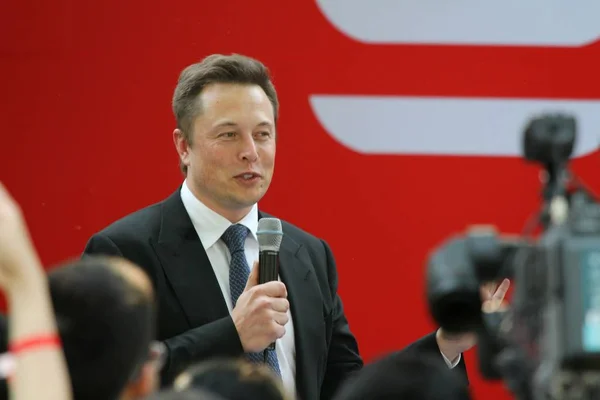
Example 1
Face swap in video (9:16)
face-swap
How to use this example
- 1.Open the tool.
- 2.Follow the inputs & settings below.
- 3.Upload the inputs shown below.
- 4.Use the keywords (or full prompt) and pick settings.
- 5.Generate and iterate (crop/lighting/prompt) if needed.
Inputs
Source

Face
Settings (used in this example)
Aspect ratio
9:16
Example 2
Face swap in image (1:1)
face-swap
How to use this example
- 1.Open the tool.
- 2.Follow the inputs & settings below.
- 3.Upload the inputs shown below.
- 4.Use the keywords (or full prompt) and pick settings.
- 5.Generate and iterate (crop/lighting/prompt) if needed.
Inputs

Target

Face
Settings (used in this example)
Aspect ratio
1:1
提示
- 选择与源视频角度/光照相似的面部图像。
- 避免运动模糊和非常低分辨率的输入。
- 如果出现瑕疵,简化源片段并尝试更短的片段。
常见问题
为什么换的脸看起来扭曲?▼
It’s usually caused by low-quality face images, extreme angles, or motion blur. Use a sharper face image and a cleaner clip.
我也可以在图像中换脸吗?▼
是的——许多工作流程支持视频和图像换脸。先从最简单的情况开始。
What’s the best aspect ratio?▼
使用与源视频相同的比例(垂直内容用9:16)。
准备好生成了吗?
打开工具并重用上面的提示词/设置。