返回所有教程
2026-01-12
如何从照片生成AI视频
当你已有照片时,图像到视频是最快的路径。使用清晰的图像,保持动作简单,并匹配目标平台的宽高比。
快速步骤
一分钟内可以完成的快速清单。
- 1打开图像到视频工具。
- 2上传清晰的照片(一张面部,良好光照,简单背景)。
- 3添加简短的动作提示词(眨眼、微笑、小幅转头)。
- 4选择宽高比(Shorts用9:16)和短时长(从5秒开始)。
- 5生成后,如果结果晃动则改进裁剪/光照。
可选择的工具选项
模式:标准专业
宽高比:16:99:16
时长:5s10s4s / 6s / 8s (Audio mode)
分辨率:720p1080p
- 静音版专注于图片运动。音频版添加声音(选项不同)。
教程示例(包含提示词和设置)
以下每个示例都是为本指南预先选择的(非随机)。
案例 1
故事动态(照片→视频+提示词)
Image-to-Videoimage-to-video
如何使用此案例
- 1.打开工具。
- 2.选择模式:Image-to-Video.
- 3.上传下方显示的输入文件。
- 4.使用关键词(或完整提示词)并选择设置。
- 5.生成并根据需要迭代(裁剪/光线/提示词)。
输入
.webp)
Image
提示词关键词
In the picturea child and a bird are playing happilyThe bird flies onto the child's handand the child reaches out to catch itlaughing joyfully
显示完整提示词(复制)
In the picture, a child and a bird are playing happily. The bird flies onto the child's hand, and the child reaches out to catch it, laughing joyfully.
设置(本案例中使用)
案例 2
单图动画(照片→视频)
Image-to-Videoimage-to-video
如何使用此案例
- 1.打开工具。
- 2.选择模式:Image-to-Video.
- 3.上传下方显示的输入文件。
- 4.使用关键词(或完整提示词)并选择设置。
- 5.生成并根据需要迭代(裁剪/光线/提示词)。
输入
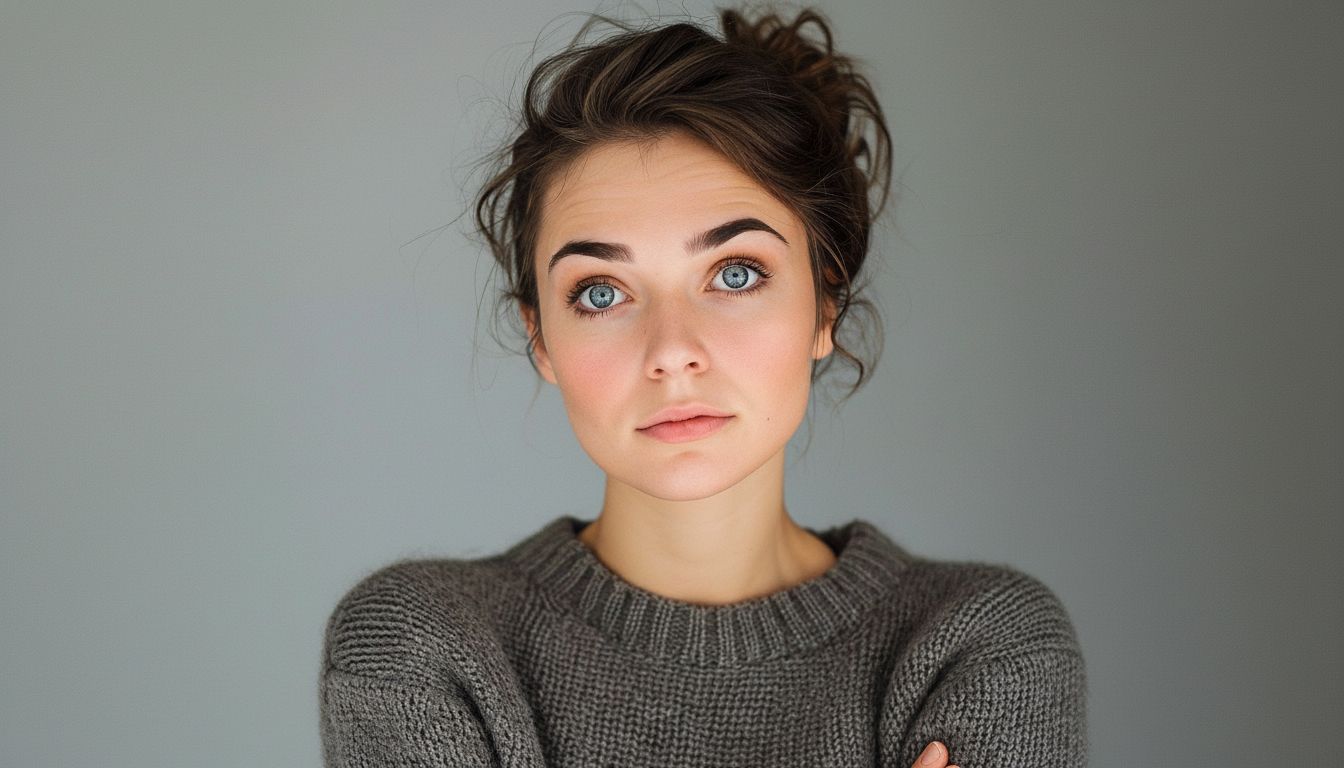
Image
设置(本案例中使用)
提示
- 在画面中包含肩膀以减少晃动。
- 避免手遮住面部和繁忙的背景。
- 使用简单的动作提示词——复杂的编排会增加瑕疵。
常见问题
图像到视频需要写提示词吗?▼
通常简短的动作提示词有帮助,但即使没有,你也可以从一张好照片生成简单的动作。
为什么输出看起来抖动?▼
这通常来自低质量输入或过紧的裁剪。使用更清晰的照片并包含肩膀。
我应该使用什么宽高比?▼
Use 9:16 for Shorts/TikTok. Match your target platform to avoid re-cropping later.
准备好生成了吗?
打开工具并重用上面的提示词/设置。