AIベビー動画の作り方
このガイドでは、最もシンプルなワークフローを説明します:正しい方法を選び、明確な入力(写真またはプロンプト)を使用し、適切な比率を設定して生成します。まずステップに従い、次に以下の実例を再利用してください。
最初に、架空の赤ちゃんのシーンを作るのか、手元の写真を動かすのか、決まったセリフを話させるのかを選びます。前の2つは Baby Video で作成できます。録音した声を使う場合は、赤ちゃんが話す動画やポッドキャストのガイドをご覧ください。
ツールを開くクイックステップ
素材の準備から結果の確認まで、順番に進めます。
- 1ベビービデオツールを開く。
- 2写真を動かす場合は「画像から動画」、文章から新しい場面を作る場合は「テキストから動画」を選びます。
- 3写真を使う場合は画像をアップロードし、動きを一つ指定します。文章だけの場合は、赤ちゃん・背景・動き・カメラを説明します。
- 4アスペクト比を設定(TikTok/Shortsは9:16)し、時間を短く保つ(5秒から始める)。
- 5選べる設定と必要クレジットを確認して生成します。最後まで再生し、顔・手・動きに不自然な箇所がないか確認します。
- 6完成した動画を作品一覧からダウンロードします。字幕の追加や複数クリップの編集は、必要に応じて動画編集ソフトで行います。
- 縦横比・長さ・解像度・音声対応はモデルにより異なります。モデル選択後に現在の設定とクレジットを確認してください。
作りたい動画に合う方法を選ぶ
- 写真なしでシーンを作る
- テキストから動画を選び、赤ちゃん1人、場所1つ、動作1つを指定します。別々に生成すると顔が変わることがあります。次のクリップでも同じ見た目を出発点にしたい場合は、静止画を保存して画像入力に使います。
- 赤ちゃんの写真を動かす
- 写真に使いたい顔、服、背景がそろっている場合は、画像から動画を選びます。写真全体を作り直す指示ではなく、動きを指定しましょう。入力写真は見た目の手がかりになりますが、全フレームで同じ細部が保たれる保証はありません。
- 赤ちゃんにセリフを話させる
- 決まった言葉を話させたい場合は、Baby Talking または Baby Podcast で写真と録音・アップロードした音声を組み合わせます。通常の動画で口が動いても、指定したセリフと同期しているとは限りません。
動作に合わせて写真を切り取る
表情を動かす写真と、手足を動かす写真では、必要な範囲が違います。生成前に構図を確認しましょう。
- 笑顔・まばたき
- 鮮明な顔1つ、頭全体、肩の一部を入れます。おしゃぶり、口を覆う手、強いフィルター、額が切れた写真は避けてください。
- 手を振る
- 肩、腕、手を写し、体の横に余白を作ります。顔だけの写真では、写っていない腕をモデルが補う必要があります。
- カメラに近づく
- 体と、その体を支える床や寝具を写します。進む方向に余白を残し、手足や床との接触を表情動画よりも念入りに確認します。
- 縦動画にする
- 可能なら縦長の写真から始めます。正方形の画像を9:16にすると、切り取りや描き足しが生じることがあるため、選んだ比率の扱いを確認してください。字幕用の余白も確保します。
結果を確認しやすいプロンプトを書く
最初は主な動作1つと簡単なカメラ指定に絞ります。以下は試すための文例で、新しく生成した結果の記録ではありません。
短い動画で「歩く、回る、拍手する、踊る」を同時に要求すると確認が難しくなります。長い話にしたい場合は、簡単なショットを複数作り、後でつなぎます。「4K」「10秒」と書くだけでは、解像度や長さの設定にはなりません。
写真 → 小さな表情の変化
赤ちゃんがやさしく微笑み、1回まばたきする。頭はほぼ動かさない。服と背景の見た目を保つ。カメラは固定。
人物と場所は写真で伝わります。まず顔が安定するかを確認し、その後に手振りやカメラ移動を加えます。
テキスト → 新しいシーン
淡い黄色のロンパースを着た赤ちゃんが、窓のそばのプレイマットに座っている。片手を上げて小さく手を振る。柔らかい自然光、ミディアムショット、固定カメラ。
人物、場所、動作、構図を指定しています。手が崩れる場合は、服やカメラを変えず、動作を笑顔だけにして試します。
短いテスト動画から始める
- モデルと長さ
- 先に入力方法を選び、対応するモデルを選択します。現在の Vidu Q3 Turbo の初期設定は5秒・540pです。モデルを変えると選択肢も変わるため、長さ、解像度、比率、必要クレジットを再確認します。
- 解像度
- 長く大きな動画を作る前に、短く低めの解像度で動きを確認します。解像度を上げても、元写真のぼけや手の不適切な切り取りは直りません。
- 音声
- 選択したモデルに音声設定があるかを確認し、結果を実際に聞きます。笑い声やセリフをプロンプトに書いても、希望どおりの音や言葉が出るとは限りません。
チュートリアル例(プロンプトと設定付き)
作例と保存されている入力素材・設定を比較してください。
リアルな赤ちゃん動画(プロンプト→動画)
文章のみの例では場面と動きの指示を確認します。写真を動かす例では、元画像があれば動画全体と比較してください。古い事例には元写真や正確な設定が残っていない場合があるため、現在の設定を使って結果を確認します。
プロンプトキーワード
A warm morning in a cozy nursery, a 9-month-old baby sitting on a soft bed, natural smile, blinking and gently waving at the camera, sun rays filtering through sheer curtains, dreamy bokeh, shallow depth of field, handheld slow push-in shot, soft pastel colors, cinematic, ultra-realistic, 4K resolution, 24 frames per second, 5-second clip.
- この作例の見どころ
- 子ども部屋のプロンプトは、入力写真なしで赤ちゃん、窓の光、カメラを指定しています。冒頭だけでなく、動画全体で顔や上げた手を確認してください。
- 指示と実ファイルは区別する
- 保存されたプロンプトは4K・5秒を指定していますが、表示中の実ファイルは1272 × 720で約10秒です。出力条件は現在の設定欄で選びましょう。プロンプトは実際の生成設定の証明ではありません。
赤ちゃん写真をアニメーション化(写真→動画)
文章のみの例では場面と動きの指示を確認します。写真を動かす例では、元画像があれば動画全体と比較してください。古い事例には元写真や正確な設定が残っていない場合があるため、現在の設定を使って結果を確認します。
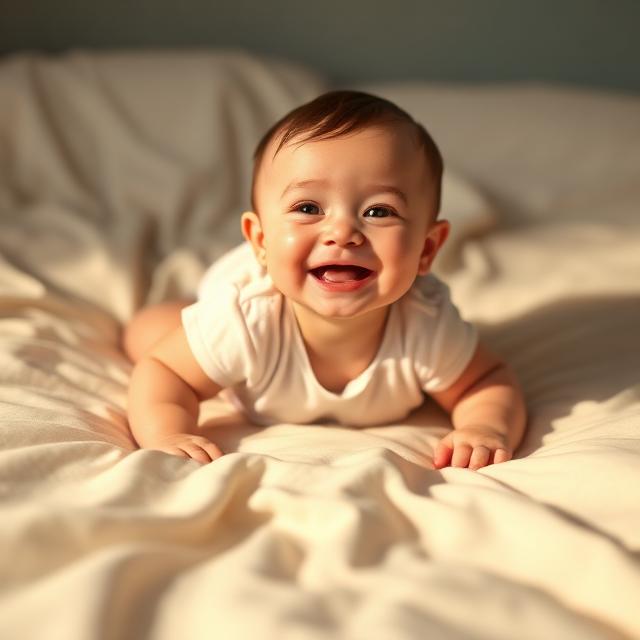
- 元写真と見比べる
- 元写真には寝具の上で笑う赤ちゃんが写っています。寝具に対して体がどう前進するか、髪、目、服が元写真とどう違うかを確認できます。
- 次に試すなら
- 正確なプロンプトは残っていません。まず固定カメラと小さな笑顔を試し、次に控えめな前進を加えます。既存ファイルは720 × 720の正方形で約5秒です。
テンプレート風モーション(写真→動画)
文章のみの例では場面と動きの指示を確認します。写真を動かす例では、元画像があれば動画全体と比較してください。古い事例には元写真や正確な設定が残っていない場合があるため、現在の設定を使って結果を確認します。
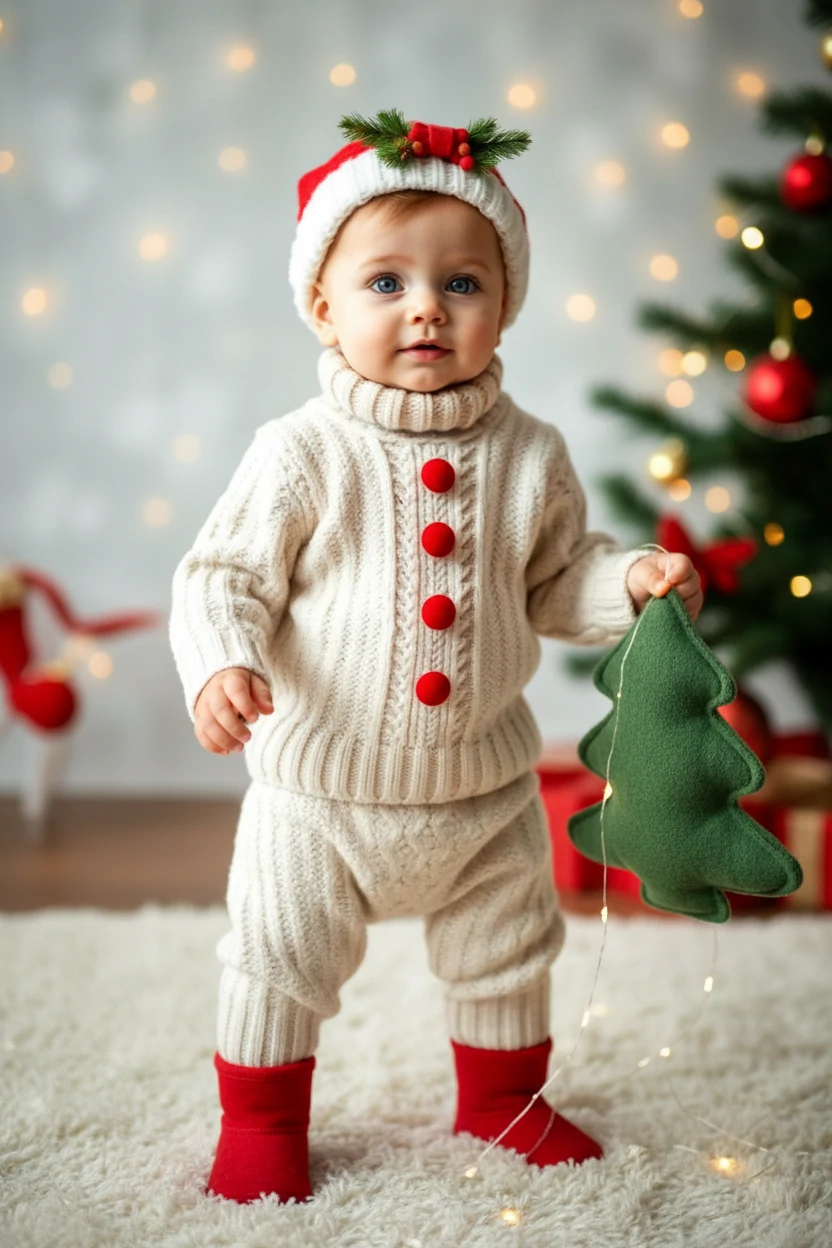
プロンプトキーワード
The person in the picture exhibits an unsteady gait as they awkwardly approach the camera, reminiscent of a novice walker.
- 全身の動きを確認する
- 元写真はニットの服と赤い靴下を着けた、立ち姿の赤ちゃんです。歩行では床への接地が変わります。近づく間の両足や服のボタンに注目してください。
- 動きを調整する
- 全身が見える構図を保ち、手足が崩れたら動作を小さくします。この過去のファイルは320 × 480で約10秒です。現在選べる解像度を示すものではありません。
書き出す前に最後まで確認する
- 冒頭・中間・最後
- 通常速度で再生し、大きく動く場面で一時停止します。目、口、指の数、服、背景の輪郭を確認しましょう。サムネイルが良くても最後のフレームが崩れることがあります。
- 使える結果を保存する
- 別案を試す前に、残したい動画をダウンロードします。入力画像、プロンプト、設定も控えると比較できます。再生成は新たな試行で、追加クレジットを使う場合があります。
- 投稿用に仕上げる
- 動画編集ソフトで間を切り、クリップをつなぎ、字幕を入れます。スマートフォンで顔が隠れないかを確認し、ダウンロードしたファイルを開いて音も聞いてから投稿します。
見つかった問題ごとに直す
- 顔が変わってしまう
- より鮮明な正面写真を使い、頭の回転を減らします。入力写真とカメラは固定し、動作の指示だけを変えてください。
- 手足が崩れる
- 該当する部位が写った写真を使い、動きの幅、回転、動作数を減らします。特定の振り付けなら、ダンス専用ツールで参照動画を使います。
- 背景がゆがむ
- 固定カメラで動作を小さくして試します。人物とカメラを同時に動かすと、モデルが補う場面の範囲が広がります。
- セリフが合わない
- 決まったメッセージには、写真と録音音声を使う方法を選びます。動作用のプロンプトにセリフを繰り返しても、確実なリップシンクにはなりません。
作りたい動画のガイドへ
- 赤ちゃんの写真をしゃべらせる
顔写真と短い音声を準備します。
- 赤ちゃんのポッドキャストを作る
短い話と話すテンポを考えます。
- 赤ちゃんのダンス動画を作る
参照動画で動きを指定します。
- 赤ちゃんに歌わせる
歌声の音源を使い、口の動きを確認します。
ヒント
- モーションをシンプルに保つ(まばたき、笑顔、手を振る)。複雑なアクションはアーティファクトを増やします。
- 顔が大きくなるようにクロップを締めますが、揺れを減らすために肩を含めます。
- よりリアルな顔にするために、きれいな背景と良好な照明を使用します。
- 反復ごとに1つの変数(プロンプトまたはクロップまたは比率)を変更して、より早く学習します。
- 最初の指示例:「赤ちゃんが笑顔で小さく手を振る。カメラは固定」。これを出発点にし、生成結果を確認して調整します。
よくある質問
リアルな結果を得るにはどの方法が最適ですか?▼
どのアスペクト比を使用すべきですか?▼
なぜ顔が不安定またはぼやけて見えるのですか?▼
写真がなくてもAI赤ちゃん動画を作れますか?▼
AI赤ちゃん動画は無料で作れますか?▼
大人の写真を赤ちゃんに変える方法ですか?▼
生成する準備はできましたか?
自分の素材を選び、生成前に利用できる設定を確認しましょう。