AI 아기 영상 만드는 방법
이 가이드는 가장 간단한 워크플로우를 안내합니다: 올바른 방법 선택, 명확한 입력(사진 또는 프롬프트) 사용, 올바른 비율 설정, 그리고 생성. 먼저 단계를 따르고, 아래의 실제 예제를 재사용하세요.
먼저 만들 결과를 정하세요. 새로운 아기 장면을 만들거나, 사진에 움직임을 넣거나, 정해진 대사를 말하게 할 수 있습니다. 앞의 두 작업은 Baby Video를 사용합니다. 특정 음성 녹음을 쓰려면 말하는 아기 또는 팟캐스트 가이드를 참고하세요.
도구 열기빠른 단계
입력 준비부터 결과 확인까지 순서대로 진행하세요.
- 1아기 영상 도구를 엽니다.
- 2사진을 움직이려면 이미지로 동영상 만들기를, 설명으로 새 장면을 만들려면 텍스트로 동영상 만들기를 선택하세요.
- 3사진을 올렸다면 동작 하나를 설명하세요. 텍스트만 사용한다면 아기, 배경, 동작, 카메라 움직임을 적으세요.
- 4화면 비율 설정 (TikTok/Shorts용 9:16) 및 짧은 재생 시간 유지 (5초로 시작).
- 5설정과 예상 크레딧을 확인한 뒤 생성하세요. 전체 영상을 재생해 얼굴, 손, 움직임을 확인하세요.
- 6완성된 영상은 내 작업에서 다운로드하세요. 자막 추가나 여러 클립 연결은 필요할 때 영상 편집기에서 진행하세요.
- 비율, 길이, 해상도, 음성 지원은 모델마다 다릅니다. 모델을 선택한 뒤 현재 설정과 예상 크레딧을 확인하세요.
시작 방법 고르기
- 사진 없이 장면 만들기
- 텍스트를 동영상으로 바꾸는 모드를 선택하고 아기 한 명, 장소 하나, 동작 하나를 설명하세요. 따로 생성한 영상은 얼굴이 달라질 수 있습니다. 다음 클립도 같은 모습에서 시작하려면 이미지를 저장해 입력 사진으로 사용하세요.
- 아기 사진 움직이게 하기
- 원하는 얼굴, 옷, 배경이 이미 사진에 있다면 이미지 기반 모드를 선택하세요. 장면 전체를 바꾸기보다 움직임을 설명합니다. 입력 사진은 외형을 안내하지만 모든 프레임의 세부 사항을 보장하지는 않습니다.
- 아기가 대사를 말하게 하기
- Baby Talking이나 Baby Podcast에서 사진과 업로드하거나 녹음한 음성을 조합하세요. 일반 영상에서 입이 움직인다고 해서 원하는 대사와 맞는 것은 아닙니다.
움직임에 맞게 사진 구도 잡기
표정만 바꿀 때와 팔다리를 움직일 때는 필요한 사진 범위가 다릅니다. 생성 전에 구도를 확인하세요.
- 미소·눈 깜박임
- 선명한 얼굴 하나와 머리 전체, 어깨 일부를 포함하세요. 공갈젖꼭지, 입을 가린 손, 강한 필터, 이마가 잘린 사진은 피합니다.
- 손 흔들기
- 어깨, 팔, 손이 모두 보이도록 하고 몸 옆에 여백을 남기세요. 얼굴만 나온 사진에서는 모델이 보이지 않는 팔을 만들어야 합니다.
- 카메라 쪽으로 이동하기
- 몸과 몸을 받치는 바닥이나 침구가 보여야 합니다. 이동 방향에 공간을 남기고, 얼굴 위주의 영상보다 손발과 바닥 접촉을 더 자세히 확인하세요.
- 세로 영상 만들기
- 가능하면 세로 사진으로 시작하세요. 정사각형 사진을 9:16으로 바꾸면 일부를 자르거나 새 영역을 채울 수 있으니 선택한 비율의 적용 방식을 확인합니다. 얼굴을 가리지 않을 자막 공간도 남기세요.
결과를 확인할 수 있는 프롬프트 쓰기
첫 시도는 주요 동작 하나와 간단한 카메라 지시로 시작하세요. 아래 문구는 시험용 제안이며 새로 생성한 결과의 기록이 아닙니다.
짧은 영상 하나에 걷기, 회전, 박수, 춤을 모두 요구하지 마세요. 긴 이야기는 간단한 장면을 여러 개 만든 뒤 편집기로 연결합니다. 프롬프트에 “4K”나 “10초”를 쓰는 것은 실제 해상도·길이 설정을 대신하지 못합니다.
사진 → 작은 표정 변화
아기가 부드럽게 미소 짓고 눈을 한 번 깜박인다. 머리는 거의 움직이지 않는다. 옷과 배경의 모습을 유지한다. 카메라 고정.
사진이 인물과 배경을 알려줍니다. 얼굴이 안정적인지 먼저 확인한 다음 손 흔들기나 카메라 움직임을 추가하세요.
텍스트 → 새로운 장면
연한 노란색 우주복을 입은 아기가 창가 놀이 매트에 앉아 있다. 한 손을 들어 작게 흔든다. 부드러운 자연광, 미디엄 샷, 고정 카메라.
인물, 장소, 동작, 구도를 지정합니다. 손이 어색하면 옷과 카메라는 유지하고 동작만 미소로 바꿔 보세요.
짧은 시험 영상으로 시작하기
- 모델과 길이
- 입력 방식을 먼저 고르고 지원하는 모델을 선택하세요. 현재 Vidu Q3 Turbo의 기본값은 5초, 540p입니다. 모델마다 선택지가 다르므로 바꾼 뒤 길이, 해상도, 비율, 예상 크레딧을 다시 확인하세요.
- 해상도
- 길거나 큰 영상을 만들기 전에 짧고 낮은 해상도의 영상으로 동작을 확인하세요. 해상도를 높여도 원본의 흐린 얼굴이나 잘린 손은 복구되지 않습니다.
- 소리
- 선택한 모델에 오디오 옵션이 있는지 확인하고 결과를 직접 들어 보세요. 웃음이나 대사를 요청해도 원하는 소리와 정확한 문장이 나오는 것은 아닙니다.
튜토리얼 예제(프롬프트 및 설정 포함)
예시와 함께 제공된 입력 자료, 기록된 설정을 비교하세요.
리얼 아기 영상 (프롬프트 → 영상)
텍스트 예시에서 장면과 움직임 지시를 살펴보세요. 사진을 움직인 영상은 원본이 있으면 전체 클립과 비교하세요. 오래된 예시는 원본이나 정확한 설정이 없을 수 있으므로 현재 편집기 설정으로 결과를 확인하세요.
프롬프트 키워드
A warm morning in a cozy nursery, a 9-month-old baby sitting on a soft bed, natural smile, blinking and gently waving at the camera, sun rays filtering through sheer curtains, dreamy bokeh, shallow depth of field, handheld slow push-in shot, soft pastel colors, cinematic, ultra-realistic, 4K resolution, 24 frames per second, 5-second clip.
- 이 예시에서 볼 부분
- 아기방 프롬프트는 원본 사진 없이 아기, 창문 빛, 카메라 방향을 지정합니다. 첫 화면뿐 아니라 전체 영상에서 얼굴과 든 손을 비교하세요.
- 요청 사양과 실제 파일 구분
- 보관된 프롬프트에는 4K와 5초가 적혀 있지만 표시되는 파일은 1272 × 720, 약 10초입니다. 실제 출력은 현재 설정에서 선택하세요. 프롬프트가 사용된 설정을 증명하지는 않습니다.
아기 사진 애니메이션 (사진 → 영상)
텍스트 예시에서 장면과 움직임 지시를 살펴보세요. 사진을 움직인 영상은 원본이 있으면 전체 클립과 비교하세요. 오래된 예시는 원본이나 정확한 설정이 없을 수 있으므로 현재 편집기 설정으로 결과를 확인하세요.
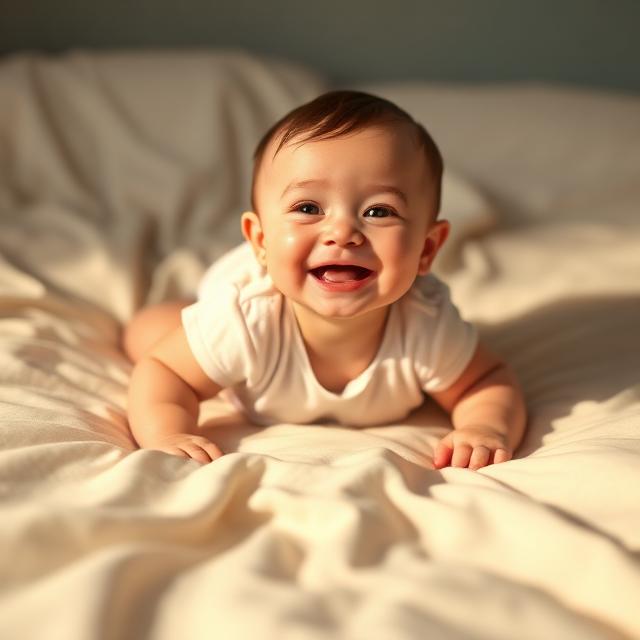
- 원본 사진과 비교
- 입력 사진은 침구 위에서 웃는 아기를 보여 줍니다. 침구를 기준으로 몸이 앞으로 움직이는 모습과 머리카락, 눈, 옷을 원본과 비교해 보세요.
- 다음에 시도할 내용
- 정확한 프롬프트는 남아 있지 않습니다. 고정 카메라와 작은 미소로 시작한 뒤 약한 전진 동작을 추가하세요. 기존 파일은 정사각형 720 × 720이며 약 5초입니다.
템플릿 스타일 모션 (사진 → 영상)
텍스트 예시에서 장면과 움직임 지시를 살펴보세요. 사진을 움직인 영상은 원본이 있으면 전체 클립과 비교하세요. 오래된 예시는 원본이나 정확한 설정이 없을 수 있으므로 현재 편집기 설정으로 결과를 확인하세요.
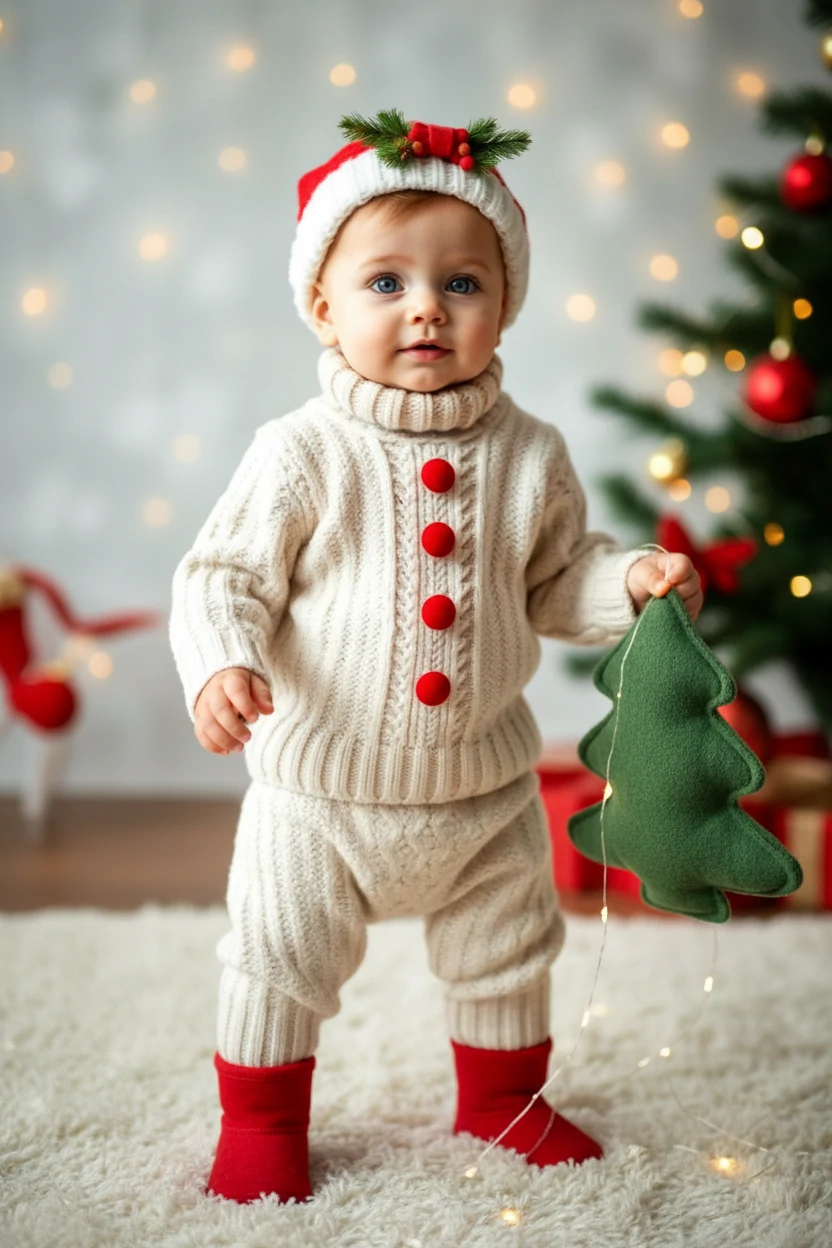
프롬프트 키워드
The person in the picture exhibits an unsteady gait as they awkwardly approach the camera, reminiscent of a novice walker.
- 전신 동작 확인
- 원본에는 니트 옷과 빨간 양말을 입고 선 아기가 있습니다. 걸을 때는 바닥에 닿는 발이 바뀝니다. 가까이 오는 동안 양발과 옷의 단추를 확인하세요.
- 아이디어 응용
- 몸 전체가 보이게 하고 팔다리가 일그러지면 동작을 줄이세요. 이 과거 파일은 320 × 480, 약 10초이며 현재 선택 가능한 해상도를 뜻하지 않습니다.
내보내기 전 전체 영상 확인하기
- 처음·중간·마지막
- 정상 속도로 본 뒤 가장 크게 움직이는 순간에 멈추세요. 눈, 입, 손가락 수, 옷, 배경 경계를 확인합니다. 썸네일이 좋아도 마지막 장면은 어색할 수 있습니다.
- 쓸 만한 결과 저장
- 다른 버전을 만들기 전에 보관할 결과를 다운로드하세요. 입력 사진, 프롬프트, 설정을 기록하면 변경점을 비교할 수 있습니다. 재생성은 새로운 시도이며 추가 크레딧이 들 수 있습니다.
- 게시용으로 마무리
- 영상 편집기에서 공백을 자르고 클립을 연결한 뒤 자막을 넣습니다. 휴대폰에서 얼굴이 가려지지 않는지 확인하고, 다운로드한 파일을 열어 소리까지 들은 후 게시하세요.
보이는 문제부터 수정하기
- 얼굴이 달라져요
- 더 선명한 정면 사진을 쓰고 고개 회전을 줄이세요. 입력 사진과 카메라는 유지한 채 움직임 지시만 바꿉니다.
- 손이나 다리가 일그러져요
- 해당 부위가 보이는 사진을 쓰고 동작 범위, 회전, 동작 수를 줄이세요. 특정 안무는 전용 춤 도구에서 참조 영상으로 지정합니다.
- 배경이 휘어 보여요
- 카메라를 고정하고 움직임을 줄여 보세요. 카메라와 인물이 동시에 움직이면 모델이 새로 채워야 하는 장면이 늘어납니다.
- 원하는 대사가 아니에요
- 정해진 메시지는 사진과 녹음 음성을 사용하는 방식으로 만드세요. 동작 프롬프트에 대사를 반복해도 정확한 립싱크가 보장되지 않습니다.
만들 영상에 맞는 가이드
- 아기 사진을 말하게 만들기
얼굴 사진과 짧은 음성을 준비합니다.
- 아기 팟캐스트 만들기
짧은 독백과 말하는 속도를 계획합니다.
- 춤추는 아기 영상 만들기
참조 영상으로 동작을 전달합니다.
- 아기가 노래하게 만들기
노래 음원을 사용하고 입 모양을 확인합니다.
팁
- 동작을 단순하게 유지 (눈 깜빡임, 미소, 손 흔들기). 복잡한 동작은 아티팩트를 증가시킵니다.
- 얼굴이 더 크게 보이도록 크롭을 조이되, 흔들림을 줄이기 위해 어깨를 포함합니다.
- 더 사실적인 얼굴을 위해 깨끗한 배경과 좋은 조명을 사용합니다.
- 더 빠른 학습을 위해 반복당 하나의 변수만 변경 (프롬프트 또는 크롭 또는 비율).
- 시작 프롬프트 예시: “아기가 웃으며 손을 작게 한 번 흔든다. 카메라는 고정된다.” 결과를 확인하며 조정하세요.
자주 묻는 질문
사실적인 결과에 가장 좋은 방법은?▼
어떤 화면 비율을 사용해야 하나요?▼
얼굴이 불안정하거나 흐릿해 보이는 이유는?▼
사진 없이 AI 아기 영상을 만들 수 있나요?▼
AI 아기 영상을 무료로 만들 수 있나요?▼
성인 사진을 아기로 바꾸는 방법인가요?▼
생성할 준비가 되셨나요?
자신의 입력 자료를 선택하고 생성 전에 가능한 설정을 확인하세요.