모든 가이드로 돌아가기
2026-01-12
AI 배경 제거기
배경 제거는 깨끗한 주제 가장자리와 좋은 대비로 가장 쉽습니다. 고품질 입력 이미지를 사용한 다음, 필요하면 투명도를 위해 PNG로 내보내세요.
빠른 단계
1분 이내에 완료할 수 있는 빠른 체크리스트.
- 1배경 제거 도구를 엽니다.
- 2이미지 업로드 (선명한 주제 가장자리, 좋은 조명).
- 3배경 제거 및 가장자리 검토 (머리카락과 손은 가장 깨끗한 입력이 필요함).
- 4선택 사항: 새 이미지로 배경 교체.
- 5다운로드 (투명도가 필요하면 PNG 권장).
선택 가능한 도구 옵션
모드:배경 제거배경 교체
화면 비율:1:12:33:23:44:34:55:49:1616:921:9
형식:PNGJPG
- 화면 비율과 형식은 교체 모드에서 적용됩니다.
튜토리얼 예제(프롬프트 및 설정 포함)
아래의 각 예제는 이 가이드를 위해 미리 선택되었습니다(무작위 아님).
예제 1
배경 제거 (예시)
remove-bg
이 예제 사용 방법
- 1.도구를 엽니다.
- 2.아래의 입력 및 설정을 따르세요.
- 3.아래에 표시된 입력 파일을 업로드하세요.
- 4.키워드(또는 전체 프롬프트)를 사용하고 설정을 선택하세요.
- 5.생성하고 필요에 따라 반복하세요 (자르기/조명/프롬프트).
입력

Input
설정 (이 예제에서 사용)
예제 2
배경 교체 (예시)
remove-bg
이 예제 사용 방법
- 1.도구를 엽니다.
- 2.아래의 입력 및 설정을 따르세요.
- 3.아래에 표시된 입력 파일들을 업로드하세요.
- 4.키워드(또는 전체 프롬프트)를 사용하고 설정을 선택하세요.
- 5.생성하고 필요에 따라 반복하세요 (자르기/조명/프롬프트).
입력
Subject
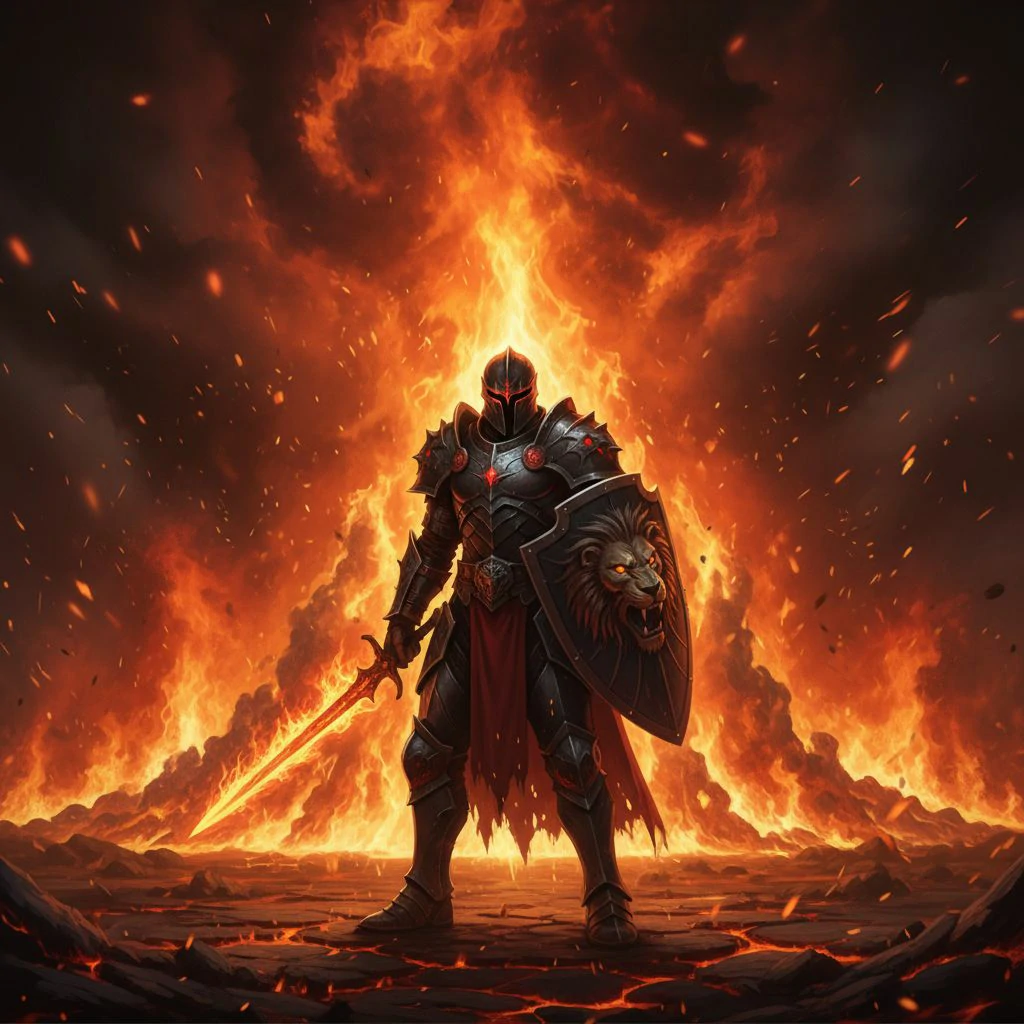
Background
설정 (이 예제에서 사용)
팁
- 고대비 이미지 사용 (주제가 배경에서 명확하게 분리됨).
- 모션 블러와 매우 저해상도 이미지를 피하세요.
- 가장자리가 톱니 모양으로 보이면 더 높은 품질의 입력 또는 더 깨끗한 조명을 시도하세요.
자주 묻는 질문
어떤 파일 형식을 다운로드해야 하나요?▼
PNG is best when you need transparency. Use JPG if you’re placing it on a solid background.
머리카락 가장자리가 지저분해 보이는 이유는?▼
머리카락은 가장 어려운 가장자리 케이스입니다. 더 나은 조명과 적은 배경 혼란으로 더 높은 해상도 입력을 사용하세요.
배경도 교체할 수 있나요?▼
네—교체 옵션을 사용하고 가장 자연스러운 결과를 위해 깨끗한 배경을 선택하세요.
생성할 준비가 되셨나요?
도구를 열고 위의 프롬프트/설정을 재사용하세요.