AI Baby Meme Video Generator
Baby meme videos work by transferring motion from a trending meme clip onto a baby photo. Unlike regular baby videos, you need two inputs: a source meme video (the motion) and a character image (the baby face). The AI maps the movement frame-by-frame, so the quality depends heavily on choosing a meme with clear, simple motion and a well-lit baby photo.
Build the joke around one readable reaction: a serious stare, a smile or a small head turn. The reference supplies that performance; your baby photo supplies the character. Write the caption for the audience who will read it, then add it after the motion works.
Open the toolQuick Steps
Follow the steps from preparing your inputs to checking the result.
- 1Open the Baby Meme tool.
- 2Upload a trending meme video (or pick a sample) — this provides the motion.
- 3Upload a clear baby photo — this becomes the character face.
- 4Preview the estimated duration and credit cost.
- 5Generate and review the result.
- 6Download and share — add your own caption or audio for extra engagement.
- Duration matches your meme video (max 30s).
- Upload a meme video + a baby photo (two inputs).
Choose the moment that makes the joke work
- Keep a beginning, reaction and ending
- In a video editor, trim to one complete reaction with a little stillness before and after it. Around 3–6 seconds is a useful first test, not a required setting. Keep the face visible and avoid cuts, people crossing the frame or a hand covering the punchline expression.
- Match the photo to the performance
- Use one clear face at a similar angle to the reference, with visible shoulders for upper-body gestures. Leave space around the head. A close face photo cannot reliably supply a missing full body for a running or spinning scene.
- Separate the caption from the movement
- Use the source clip to establish the reaction, not to carry text over the face. Choose a clean reference where possible. The generator has no caption or prompt field; the words and their timing are added in another editor.
A short caption to try
When they say “one more photo”
Show this before a serious stare or a slow head turn, then let the expression finish. This is a caption for editing after download, not a generation prompt or text spoken by the baby.
Check the actual inputs and estimate
- Reference video
- Upload a video or choose the sample. Keep it within 30 seconds and 50 MB. Convert a GIF to video first. If a MOV or AVI does not preview, export an H.264 MP4 and play the exported file before uploading it.
- Photo and current model
- Add your baby photo separately, or select a sample image. The current model is DreamActor. There are no prompt, resolution or aspect-ratio selectors here. Prepare the intended framing in your inputs and check the actual result size.
- Duration, credits and sharing
- Duration is read from the reference and rounded up for the estimate. Check that it matches your clip before submitting. Review the watermark state for your account; gallery sharing is optional and separate from downloading. Save both inputs because the form clears on submission.
- Convert a GIF before using it as a reference
Conversion changes the file type, not the clarity of a low-resolution source.
Tutorial Examples (with prompts & settings)
Compare the examples, their available inputs and the settings recorded with them.
Baby meme video (motion transfer)
The motion-transfer example includes a reference video, a baby image and a finished clip. Match both inputs when following it. The older still-image examples are visual references, not outputs of the current video workflow.
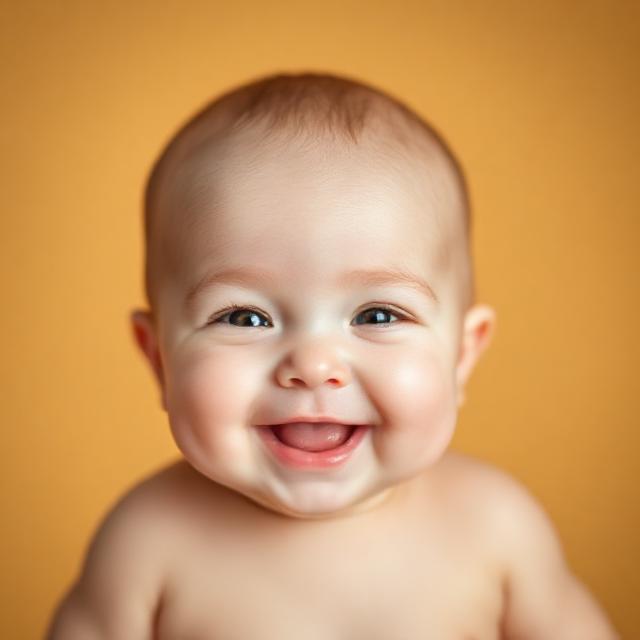
- Follow the expression across both videos
- The grayscale reference is about 3.3 seconds at 200 × 200. The smiling baby photo has an orange background; the archived result is about 3.4 seconds at 960 × 960. Play both and compare the head turn, mouth opening and final expression. The larger output is not proof that every source detail was recovered.
- A square example, not a vertical promise
- This file is square. If your destination needs 9:16, prepare a suitable composition and inspect the final crop in an editor. The archive does not record the exact original model settings or establish how sound will behave in a new attempt.
Baby meme image result
.webp)
The motion-transfer example includes a reference video, a baby image and a finished clip. Match both inputs when following it. The older still-image examples are visual references, not outputs of the current video workflow.
- Colored fingertips: an older still reference
- This dark image shows bright colored fingertips close to the camera. It illustrates a visual joke, but the hands obscure much of the face, making it a poor model for a first motion reference. No paired inputs or finished video are recorded for this still.
Baby meme image result
.webp)
The motion-transfer example includes a reference video, a baby image and a finished clip. Match both inputs when following it. The older still-image examples are visual references, not outputs of the current video workflow.
- Grayscale reaction: a pose to inspect
- The close face and open mouth make the expression visible, but this entry is a still image. Use it to think about framing and caption space. It cannot demonstrate stable motion or synchronization, and it is not another generated video example.
Place the words around the reaction
- Before the expression changes
- Add one short setup line and give viewers time to read it. Use wording that sounds natural in the audience’s language; translating a joke word for word can lose its timing. Keep text away from the eyes and mouth.
- At the reaction
- Let the face carry the punchline. Watch with sound off to see whether the caption and gesture still make sense. If you need another line, reveal it after the first one has been read rather than filling the screen.
- At the end
- Trim unnecessary stillness and replay the loop join. Listen to the downloaded file before adding audio so tracks do not overlap. This editor does not synthesize speech or music. Preview the final export on a phone before sharing.
Change the input that causes the problem
- The face changes during a turn
- Shorten the reference around a smaller turn or replace an obstructed photo. Keep the other input fixed to make the next attempt comparable. A new caption will not fix distorted frames.
- The joke lands too early or late
- If the motion looks good, adjust caption timing and trim the downloaded video in an editor. You do not need another generation just to move a line of text.
- The motion is good but the clip is not funny
- Try a clearer setup or a different reaction. A trending format or shorter duration does not guarantee views. Judge whether someone can understand the joke without your explanation.
- Make the photo say a specific line
Use recorded speech when the actual words and lip timing matter.
- Follow a full dance routine
Use a full-body image and a dance reference.
Tips
- Pick meme clips with clear upper-body motion (head turns, gestures, reactions). Full-body or fast-moving memes often produce artifacts.
- Use a front-facing baby photo with good lighting and visible shoulders — side profiles reduce motion accuracy.
- Keep meme clips short (under 10 seconds). Shorter clips = cleaner output and lower cost.
- Avoid memes with multiple people or rapid scene cuts — the AI tracks one face at a time.
- Try the built-in sample meme videos first to learn how the tool works before uploading your own.
- Keep the reference clip and generated result side by side when reviewing. If the source contains a cut or an off-screen face, shorten it before uploading again; a new caption will not fix motion transfer.
FAQ
What makes a good source meme video?▼
How is this different from Dancing Baby?▼
Why does the face look distorted in some frames?▼
Can I use any video as the meme source?▼
How do I make baby meme videos go viral?▼
Can I write the joke inside this generator?▼
Can I use a GIF as the motion source?▼
Do I have to generate again to change the caption?▼
Ready to generate?
Choose your own inputs and check the available settings before generating.