How to Make AI Baby Videos
This guide walks you through the simplest workflow: pick the right method, use a clear input (photo or prompt), set the right ratio, and generate. Follow the steps first—then reuse the worked examples below.
Start with the result you want: a new baby character, a moving version of a photo, or a baby delivering a line. The first two use Baby Video. A specific voice recording needs the talking or podcast workflow.
Open the toolQuick Steps
Follow the steps from preparing your inputs to checking the result.
- 1Open the Baby Video tool.
- 2Choose Image-to-Video to animate a photo, or Text-to-Video to create a scene from a description.
- 3For a photo, upload the image and describe one movement. For text, describe the baby, setting, movement and camera.
- 4Set aspect ratio (9:16 for TikTok/Shorts) and keep duration short (start with 5s).
- 5Review the available settings and credit estimate, generate, then play the full clip to check the face, hands and motion.
- 6Download the completed video from your creations. Add captions or assemble several clips in a video editor when needed.
- Aspect ratio, duration, resolution and audio support vary by model. Check the current controls and credit estimate after choosing a model.
Choose the right starting point
- Create a fictional baby scene
- Choose Text-to-Video when you have no source photo. Describe one baby, one setting and one action. The generated face can change between separate generations; save a still and use it as an image input if a later clip needs the same starting character.
- Animate a baby photo
- Choose Image-to-Video when the photo already has the face, clothes and setting you want. Describe the movement instead of redesigning everything in the picture. An input photo guides appearance but cannot guarantee that every frame preserves it.
- Make a baby say something
- Use a photo plus recorded or uploaded audio in Baby Talking or Baby Podcast. A smile or moving mouth in a general video is not proof of speech synchronized to your script.
Frame the photo for the movement
Choose the crop before spending credits. A face close-up and a full-body scene give the model different information.
- Blink or smile
- Keep one sharp face, the whole head and some shoulders visible. Avoid a pacifier, hands across the mouth, heavy filters and a face cropped at the forehead.
- Wave
- Include the shoulder, arm and hand, with space beside the body. A tight face crop asks the model to invent the missing arm.
- Move toward the camera
- Use a wider composition showing the body and the surface beneath it. Leave room in the direction of travel. Inspect hands, legs and contact with the floor more carefully than in a portrait animation.
- Choose the output shape
- Prepare a vertical photo for a vertical post when possible. Check how the editor uses the selected ratio; changing a square image to 9:16 may crop or invent content. Keep space for captions without covering the face.
Write a prompt you can actually evaluate
Use one main action and a simple camera instruction for the first attempt. These are starting prompts, not records of new generated results.
Avoid requests such as “walk, turn, clap, laugh and dance” in one short clip. To make a longer story, generate a few simple shots and assemble them afterward. Writing “4K” or “10 seconds” in the prompt does not replace the actual resolution and duration controls.
Photo → a small expression
The baby smiles softly and blinks once. The head stays mostly still. Keep the clothing and background consistent. Static camera.
The photo supplies the character and setting. This version makes it easier to judge whether the face stays consistent before adding a wave or camera movement.
Text → a new scene
One baby in a pale yellow onesie sits on a play mat beside a window. The baby raises one hand in a small wave. Soft daylight, medium shot, static camera.
Subject, setting, movement and framing are explicit. If the hand fails, retry the same scene with a smile before changing the outfit, camera and action together.
Set up a small first test
- Model and duration
- Pick the input mode first, then a model that supports it. The current Vidu Q3 Turbo default is 5 seconds at 540p. Other models expose different choices; after switching models, recheck duration, resolution, ratio and the credit estimate.
- Resolution
- Use a short, lower-resolution draft to judge movement before paying for a longer or larger version. A larger output cannot repair a blurred source face or a badly framed hand.
- Sound
- Check whether the selected model exposes an audio option. Listen to the result before downloading. A request for laughter or speech in the prompt does not guarantee the sound or exact words you intended.
Tutorial Examples (with prompts & settings)
Compare the examples, their available inputs and the settings recorded with them.
Realistic baby video (prompt → video)
Use the prompt-only example to study the scene and motion instructions. For photo animation, compare any available source with the full clip. Older examples do not always include their original photo or exact settings, so use the current editor controls and check the result yourself.
Prompt keywords
A warm morning in a cozy nursery, a 9-month-old baby sitting on a soft bed, natural smile, blinking and gently waving at the camera, sun rays filtering through sheer curtains, dreamy bokeh, shallow depth of field, handheld slow push-in shot, soft pastel colors, cinematic, ultra-realistic, 4K resolution, 24 frames per second, 5-second clip.
- What this example teaches
- The nursery prompt supplies the baby, window light and camera direction without a source photo. Compare the face and raised hands across the full clip, not just its opening frame.
- Read the file, not the requested specification
- The archived prompt asks for 4K and 5 seconds. The displayed file is 1272 × 720 and about 10 seconds. Use the live controls to choose your own output; the prompt is not verified settings metadata.
Animate a baby photo (photo → video)
Use the prompt-only example to study the scene and motion instructions. For photo animation, compare any available source with the full clip. Older examples do not always include their original photo or exact settings, so use the current editor controls and check the result yourself.
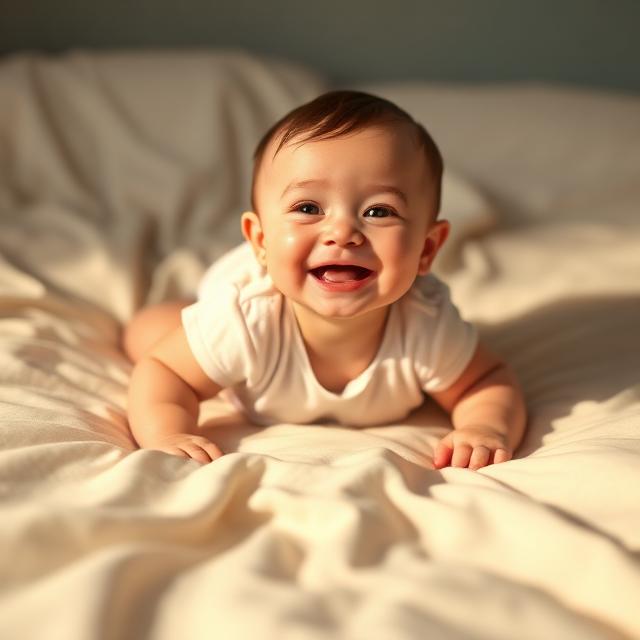
- Compare with the source
- The input shows a smiling baby lying on bedding. Watch how the body moves forward relative to the bedding, and compare the hair, eyes and clothing with the source.
- A useful next experiment
- This archive does not include the exact prompt. Try a small smile with a fixed camera first, then add a modest forward movement. The existing file is square, 720 × 720, and about 5 seconds.
Template-style motion (photo → video)
Use the prompt-only example to study the scene and motion instructions. For photo animation, compare any available source with the full clip. Older examples do not always include their original photo or exact settings, so use the current editor controls and check the result yourself.

Prompt keywords
The person in the picture exhibits an unsteady gait as they awkwardly approach the camera, reminiscent of a novice walker.
- A harder movement to inspect
- The source includes a standing baby in a knitted outfit with red socks. The walking prompt requires body movement and changing contact with the floor. Watch both feet and the outfit buttons as the baby approaches.
- Adapt the idea
- Keep the full body visible and shorten the action if limbs distort. This historical file is 320 × 480 and about 10 seconds; it is not a promise about today’s resolution options.
Review the full clip before exporting
- Beginning, middle and end
- Play once at normal speed, then pause around the largest movement. Compare the eyes, mouth, number of fingers, clothing details and background edges. A good thumbnail can hide a poor final frame.
- Keep a usable version
- Download a result you want to keep before trying another variation. Note the input, prompt and selected settings so you can understand what changed. Generating again is a new attempt and may use more credits.
- Finish the post
- Trim pauses and assemble clips in a video editor. Add captions there, preview them on a phone and check that the face stays visible. Open the downloaded file and listen to its audio before posting.
Fix the specific problem you see
- The face changes
- Try a clearer, front-facing source and reduce head turns. Keep the input photo and camera fixed while changing only the movement instruction.
- Hands or legs distort
- Include the relevant body parts in the source. Reduce the reach, turn or number of actions. If you need a particular choreography, use a dance reference in the dedicated dance tool.
- The background bends or drifts
- Try a static camera and a smaller movement. A moving camera plus a moving subject asks the model to rebuild more of the scene.
- The words do not match
- Switch to a photo-and-audio workflow for a specific spoken message. Repeating the script in a general motion prompt does not create a reliable lip-sync workflow.
Continue with the video you want to make
- Make a baby photo talk
Prepare a portrait and a short spoken recording.
- Make a baby podcast
Plan a short monologue and check voice timing.
- Make a dancing baby
Use a reference video to supply the movement.
- Make a baby sing
Use a vocal recording and inspect lip movement.
Tips
- Keep motion simple (blink, smile, wave). Complex actions increase artifacts.
- Tighten the crop so the face is larger, but include shoulders to reduce wobble.
- Use clean backgrounds and good lighting for more realistic faces.
- Change one variable per iteration (prompt OR crop OR ratio) to learn faster.
- A motion prompt to start with: “The baby smiles and gives one small wave. The camera stays still.” Treat it as a starting point, then review the result.
FAQ
Which method is best for realistic results?▼
What aspect ratio should I use?▼
Why does the face look unstable or blurry?▼
Can I make an AI baby video without a photo?▼
Can I make AI baby videos for free?▼
Can I turn an adult portrait into a baby in this workflow?▼
Ready to generate?
Choose your own inputs and check the available settings before generating.