Back to all guides
2026-01-12
How to Make AI Videos from Photos
Image-to-video is the fastest path when you already have a photo. Use a clear image, keep motion simple, and match aspect ratio to your target platform.
Quick Steps
A fast checklist you can follow in under a minute.
- 1Open the Image to Video tool.
- 2Upload a clear photo (one face, good lighting, simple background).
- 3Add a short motion prompt (blink, smile, small head turn).
- 4Choose aspect ratio (9:16 for Shorts) and short duration (start with 5s).
- 5Generate, then improve crop/lighting if results wobble.
Tool options you can choose
Modes:StandardPro
Aspect ratio:16:99:16
Duration:5s10s4s / 6s / 8s (Audio mode)
Resolution:720p1080p
- Silent version focuses on image motion. Audio version adds sound (options differ).
Tutorial Examples (with prompts & settings)
Each example below is pre-selected for this guide (not random).
Example 1
Story motion (photo → video + prompt)
Image-to-Videoimage-to-video
How to use this example
- 1.Open the tool.
- 2.Choose mode: Image-to-Video.
- 3.Upload the input shown below.
- 4.Use the keywords (or full prompt) and pick settings.
- 5.Generate and iterate (crop/lighting/prompt) if needed.
Inputs
.webp)
Image
Prompt keywords
In the picturea child and a bird are playing happilyThe bird flies onto the child's handand the child reaches out to catch itlaughing joyfully
Show full prompt (copy)
In the picture, a child and a bird are playing happily. The bird flies onto the child's hand, and the child reaches out to catch it, laughing joyfully.
Settings (used in this example)
Example 2
Single image animation (photo → video)
Image-to-Videoimage-to-video
How to use this example
- 1.Open the tool.
- 2.Choose mode: Image-to-Video.
- 3.Upload the input shown below.
- 4.Use the keywords (or full prompt) and pick settings.
- 5.Generate and iterate (crop/lighting/prompt) if needed.
Inputs
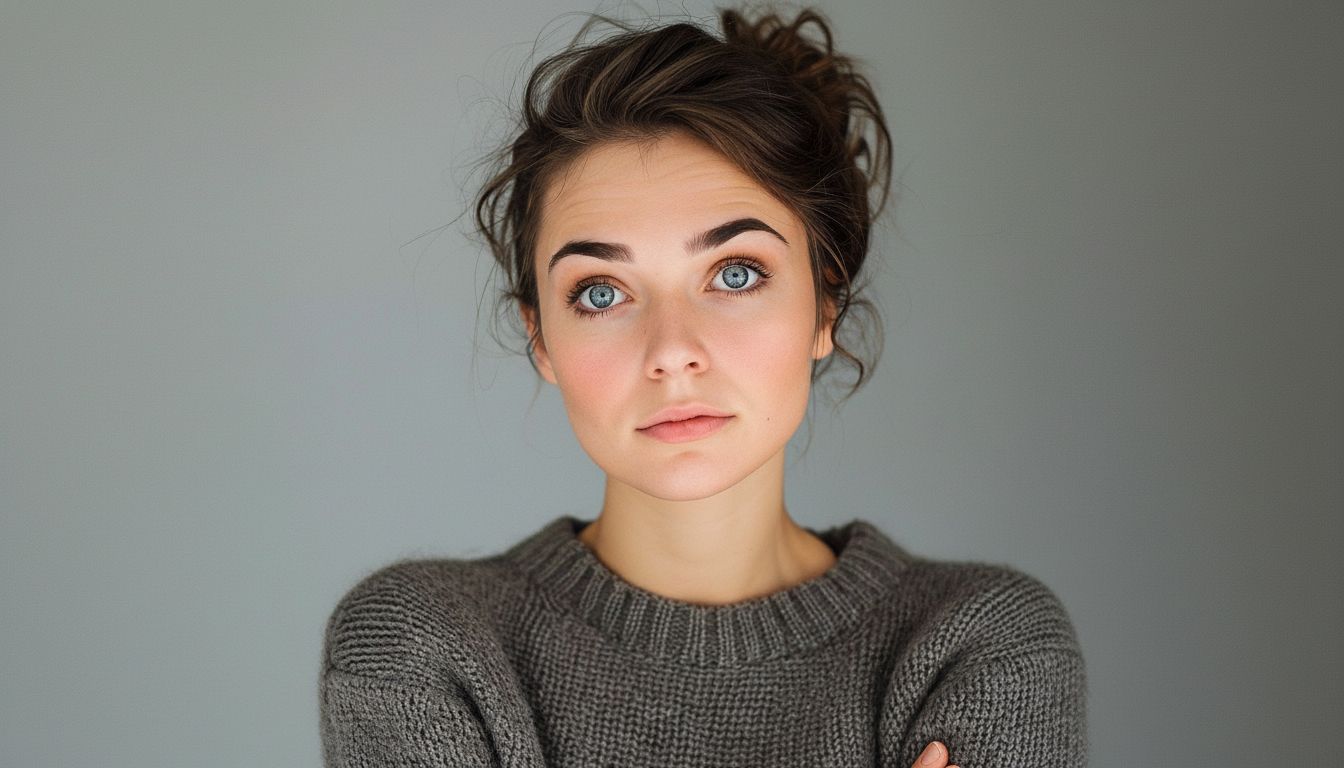
Image
Settings (used in this example)
Tips
- Include shoulders in the frame to reduce wobble.
- Avoid hands covering the face and busy backgrounds.
- Use simple motion prompts—complex choreography increases artifacts.
FAQ
Do I need to write a prompt for image-to-video?▼
Often a short motion prompt helps, but even without one you can generate simple movement from a strong photo.
Why does the output look shaky?▼
It usually comes from low-quality inputs or tight crops. Use a clearer photo and include shoulders.
What aspect ratio should I use?▼
Use 9:16 for Shorts/TikTok. Match your target platform to avoid re-cropping later.
Ready to generate?
Open the tool and reuse the prompts/settings above.