Back to all guides
2026-01-12
AI Background Remover
Background removal is easiest with clean subject edges and good contrast. Use a high-quality input image, then export as PNG for transparency if needed.
Quick Steps
A fast checklist you can follow in under a minute.
- 1Open the Remove BG tool.
- 2Upload your image (clear subject edges, good lighting).
- 3Remove background and review edges (hair and hands need the cleanest inputs).
- 4Optional: replace background with a new image.
- 5Download (PNG recommended if you need transparency).
Tool options you can choose
Modes:Remove backgroundReplace background
Aspect ratio:1:12:33:23:44:34:55:49:1616:921:9
Format:PNGJPG
- Aspect ratio & format apply in Replace mode.
Tutorial Examples (with prompts & settings)
Each example below is pre-selected for this guide (not random).
Example 1
Remove background (example)
remove-bg
How to use this example
- 1.Open the tool.
- 2.Follow the inputs & settings below.
- 3.Upload the input shown below.
- 4.Use the keywords (or full prompt) and pick settings.
- 5.Generate and iterate (crop/lighting/prompt) if needed.
Inputs
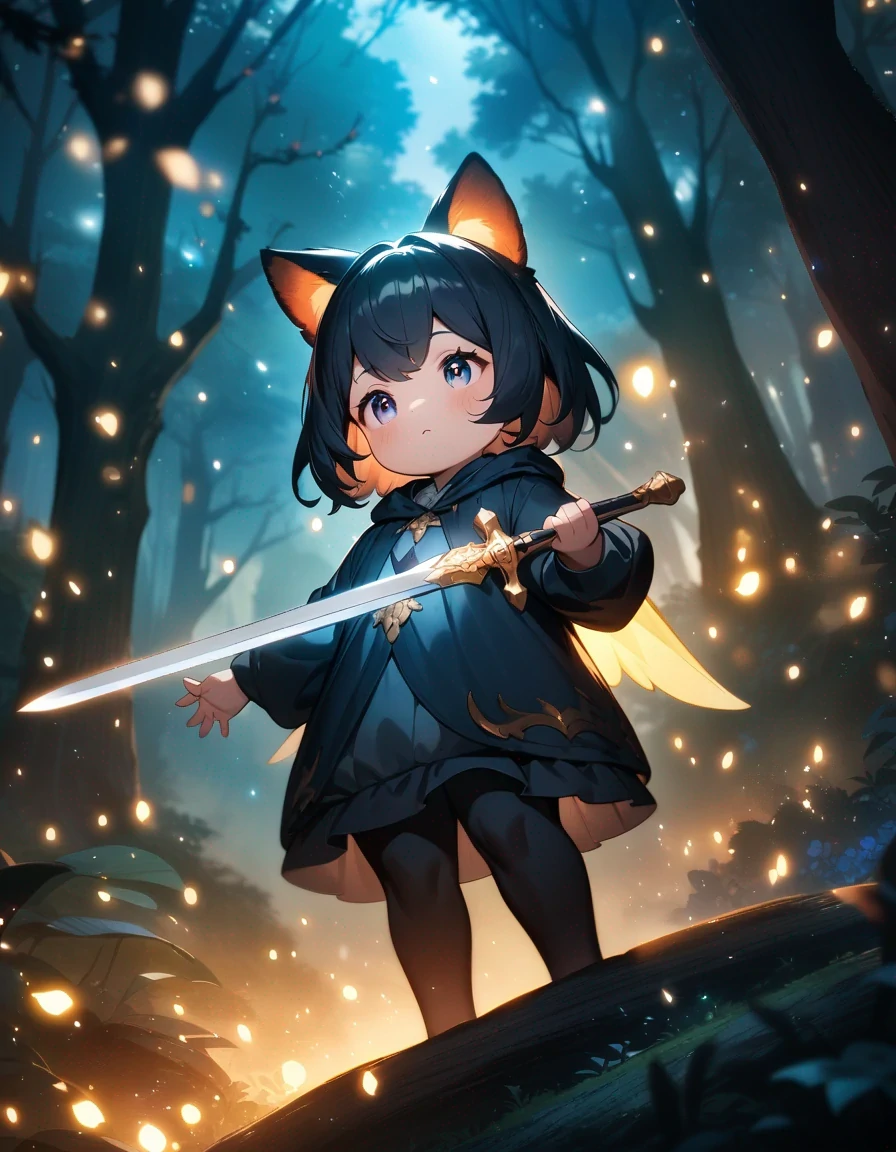
Input
Settings (used in this example)
Example 2
Replace background (example)
remove-bg
How to use this example
- 1.Open the tool.
- 2.Follow the inputs & settings below.
- 3.Upload the inputs shown below.
- 4.Use the keywords (or full prompt) and pick settings.
- 5.Generate and iterate (crop/lighting/prompt) if needed.
Inputs
Subject
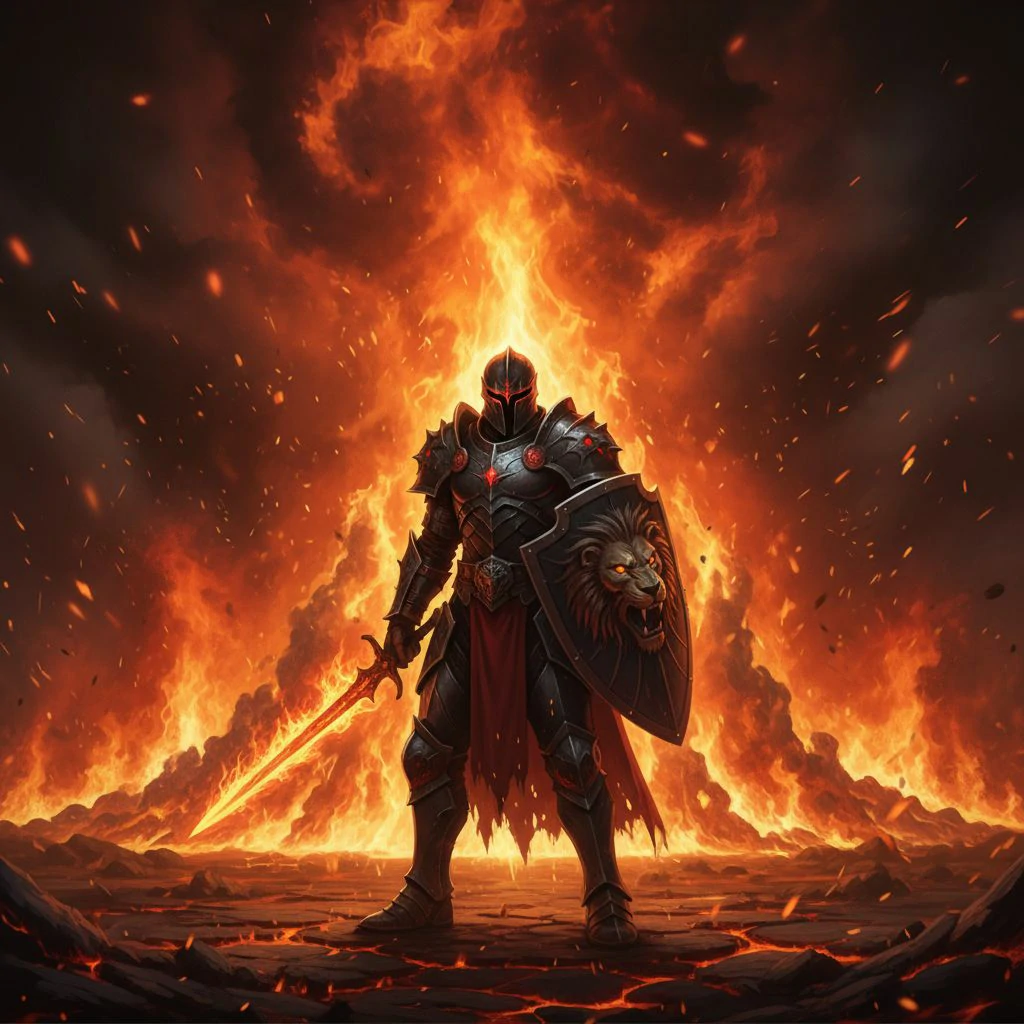
Background
Settings (used in this example)
Tips
- Use high-contrast images (subject clearly separated from the background).
- Avoid motion blur and very low-resolution images.
- If edges look jagged, try a higher-quality input or cleaner lighting.
FAQ
What file type should I download?▼
PNG is best when you need transparency. Use JPG if you’re placing it on a solid background.
Why do hair edges look messy?▼
Hair is the hardest edge case. Use a higher-resolution input with better lighting and less background clutter.
Can I replace the background too?▼
Yes—use the replace option and choose a clean background for the most natural results.
Ready to generate?
Open the tool and reuse the prompts/settings above.