How to Make a Baby Photo Talk
AI Baby Talking pairs a baby photo with uploaded or recorded audio. The recording provides the voice and timing. Choose a model and resolution, check the credits, then generate and download the talking video.
Make one photo deliver one clear message. The portrait supplies the face; your uploaded or recorded audio supplies the words, language and voice. Prepare both before choosing a model.
Open the toolQuick Steps
Follow the steps from preparing your inputs to checking the result.
- 1Open the AI Baby Talking tool.
- 2Upload a clear baby photo (front-facing, good lighting, minimal occlusion).
- 3Upload an audio file or record your voice in the editor.
- 4Choose a model and resolution, then check the per-second rate shown in the editor.
- 5Generate and review the lip-sync result.
- 6Export and share (add captions for better engagement).
Write a line, then record it
The current editor accepts audio, not a typed script. Read these examples aloud, listen back and keep the version with clear words and a natural ending.
Record in a quiet room at a steady distance from the microphone. In the tool, choose the recording button or upload an existing file. Listen from the first word through the ending, then trim long silence in an audio editor before uploading again.
A personal greeting
Hi Grandpa! I saved my biggest smile for you. See you soon.
Say the name clearly and pause between the greeting and the second sentence. Replace the recipient before recording, not after uploading the file.
A playful reply
I was not avoiding bedtime. I was waiting for the next story.
Pause slightly before the second sentence. Use one voice without background music for the first attempt; add music when editing the finished video.
Match the recording to the model
- Pruna AI Avatar
- The current default offers 720p and accepts audio up to 180 seconds. Start with a short line to inspect the face and timing before committing to a longer recording.
- Kling Avatar
- Offers 720p or 1080p, with audio up to 60 seconds. Switching from Pruna does not shorten a longer recording: trim the source file and check the duration again.
- Audio file and estimate
- The upload limit is 20 MB. Supported audio includes MP3, WAV, M4A, AAC and OGG. Wait for the duration to be detected, then review the credit estimate after choosing the model and resolution. If duration detection fails, re-export the audio in a standard format.
- Photo composition
- Use one clear face with the lips visible and space around the head. Crop out distracting faces and avoid pacifiers or fingers across the mouth. Prepare the desired frame shape in the photo; this editor has no separate aspect-ratio control.
Tutorial Examples (with prompts & settings)
Compare the examples, their available inputs and the settings recorded with them.
AI baby talking quality comparison
Use a photo and uploaded or recorded speech. A comparison video below is a viewing reference, not an extra required input. The archived examples do not provide their original voice files.
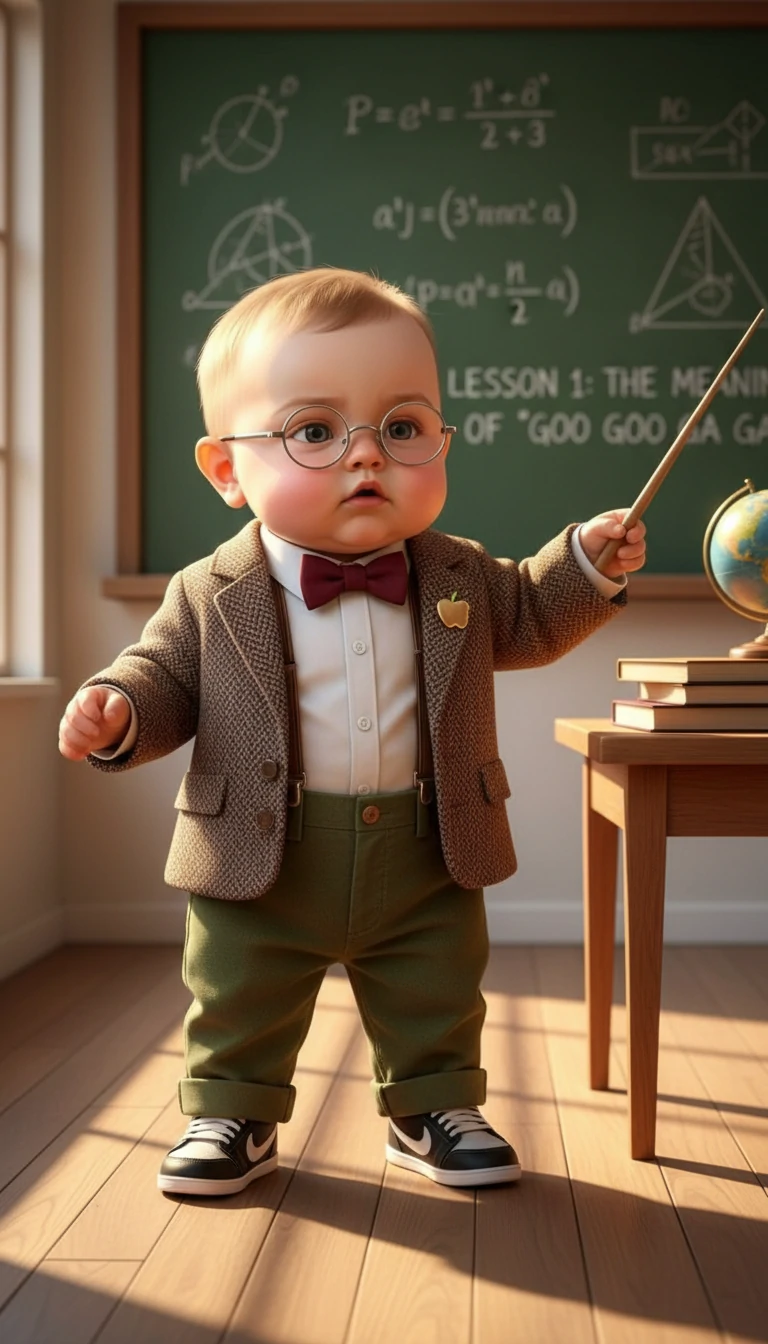
Quality comparison: original image + competitor output vs our output.
- Compare the same portrait
- This source shows a small teacher character wearing glasses and a bow tie in a classroom. Watch the lips, glasses and head movement. The extra video is a viewing reference, not a second required input for your own generation.
- What this comparison can show
- The displayed output is 480 × 864 and about 6.9 seconds; the reference is 616 × 1080. The original audio and matched settings are unavailable, so this pair is not a controlled model benchmark.
AI baby talking example
Use a photo and uploaded or recorded speech. A comparison video below is a viewing reference, not an extra required input. The archived examples do not provide their original voice files.
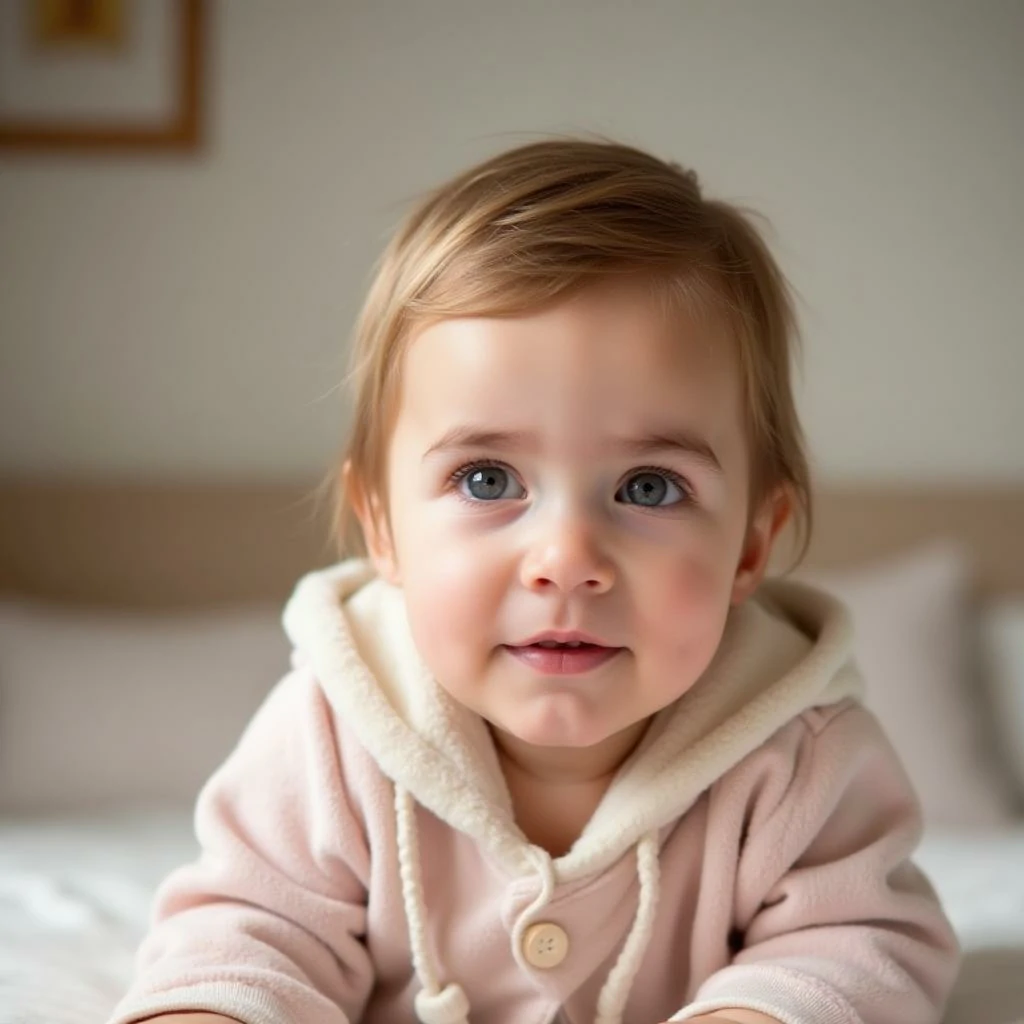
- Study the close crop
- The pale hood frames a large, clear face. Compare the cheeks and mouth with the source photo throughout the 6-second, 1088 × 1088 archive. A close crop makes small speech movements easier to inspect.
- Supply your own recording
- The archive does not include its original voice track. A historical example name is not evidence of a text-to-speech control; today’s tool needs uploaded or recorded audio.
AI baby talking example
Use a photo and uploaded or recorded speech. A comparison video below is a viewing reference, not an extra required input. The archived examples do not provide their original voice files.
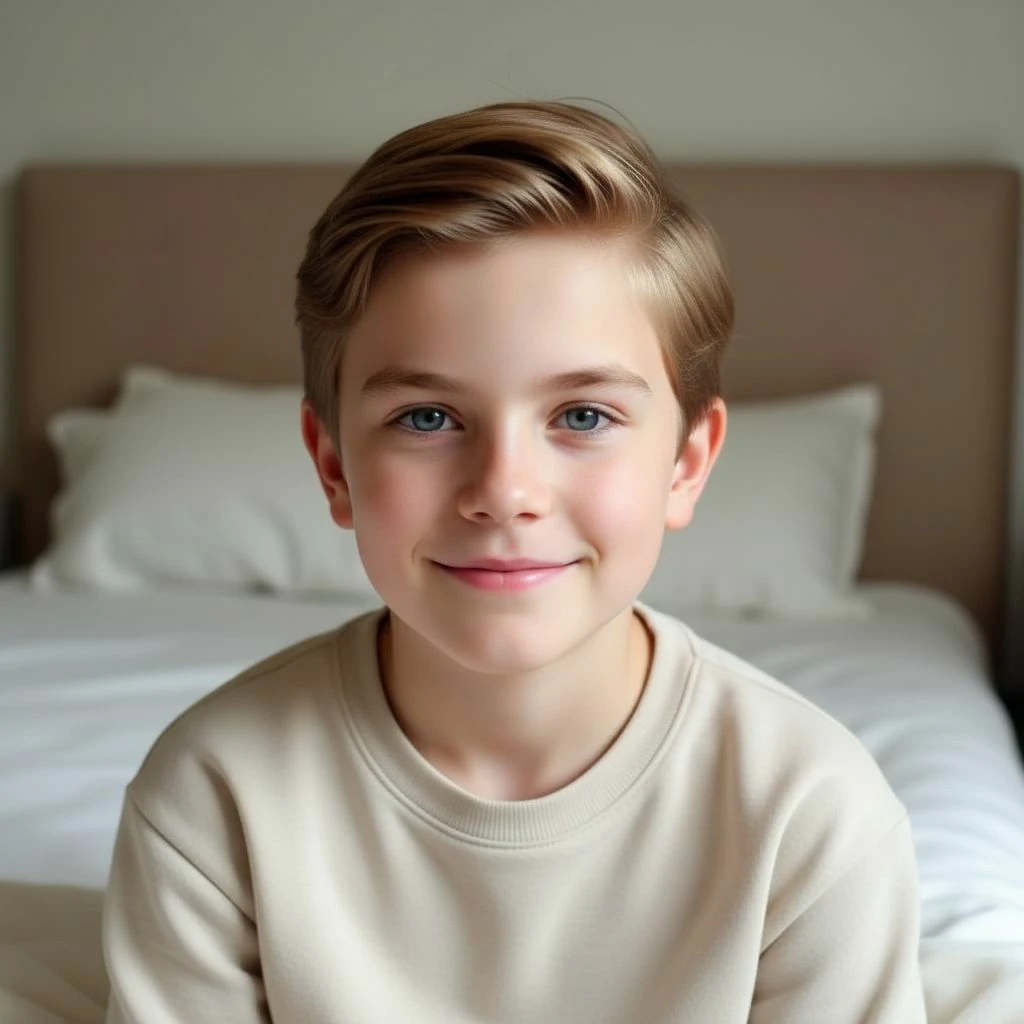
- A short portrait-speaking example
- This 3.5-second, 1088 × 1088 clip uses an older child’s portrait. It demonstrates the photo-and-audio workflow, not an infant result or an age transformation. Use a baby portrait when a baby character is the goal.
Check speech at three points
- First word
- Play with sound and watch when the mouth starts moving. If the audio itself begins late, trim its opening silence. If a word is already clipped in the source, record that line again.
- Middle of the line
- Look for mouth closures around sounds such as “m”, “b” and “p”, where they occur in your recording. Check that cheeks, eyes and glasses stay stable. This is a practical viewing check, not a guarantee of phoneme-perfect synchronization.
- Last word and ending
- Watch through the final word rather than judging the thumbnail. If the face drifts during head turns, try a straighter portrait and a shorter message. Change one input at a time so the comparison remains useful.
Download a message that is ready to share
Save a usable result before trying another variation. Open the downloaded file and check both the picture and sound. For captions, trim or music, use a video editor; keep captions below the mouth and proofread names. Adding a separate copy of the voice track can create an echo if the original clip audio remains enabled.
- Plan a baby podcast episode
For several speech beats or edited conversations.
- Make a baby sing
For a recorded vocal performance.
Tips
- Use a sharp, front-facing photo with clear facial features for best lip-sync results.
- Record in a quiet place and use a steady speaking pace.
- Start with a short recording to compare results before spending more credits.
- Shorter clips (5-15 seconds) produce more natural-looking results.
- Check the first words and the end of the recording when you preview the result. If speech is cut off, trim the source audio yourself and generate again after checking the new credit estimate.
FAQ
How do model and resolution affect AI baby talking cost?▼
Can I type text to generate speech here?▼
Why does the lip-sync look off?▼
What photo works best for AI baby talking?▼
Can I create a talking baby video for free?▼
Will changing the site language translate my recording?▼
Will the photo turn an adult voice into a baby voice?▼
Ready to generate?
Choose your own inputs and check the available settings before generating.