AI Video Generator
Create cinematic scenes, animate photos and make product clips from text or reference media. Start with Seedance 2.5, or explore Kling and Veo in the same workspace.
Why make videos with BabyVideo?
Choose how your scene begins
Start with a written idea, an image you already like or reference media. Use the mode that matches the material you have.
Explore more than one model
Try Seedance, Kling or Veo for your scene. Compare motion, character detail and sound using your own brief, with the cost visible before generation.
Build on your image work
Create a starting image in the image generator, then upload it here to animate it. Download the resulting clip for your edit or social post.
Text to video AI for cinematic scenes
Create a short visual scene without filming it. Describe the subject, action and camera movement for a story idea, an atmospheric insert or a video concept.
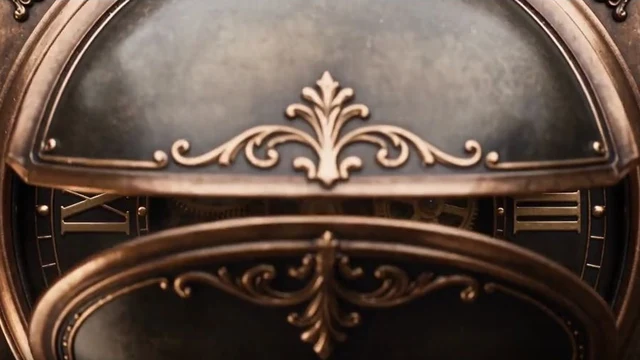
Give the shot a direction
Describe the framing and mood, from a close-up to an establishing shot.
Direct one main action and a camera move, such as a pan or tracking shot.
Include ambience, effects or dialogue when using a model with audio.
Image to video AI: animate a photo or illustration
Turn a still image into a moving scene for a social post or story. The starting image establishes the composition; your motion prompt directs what happens next.
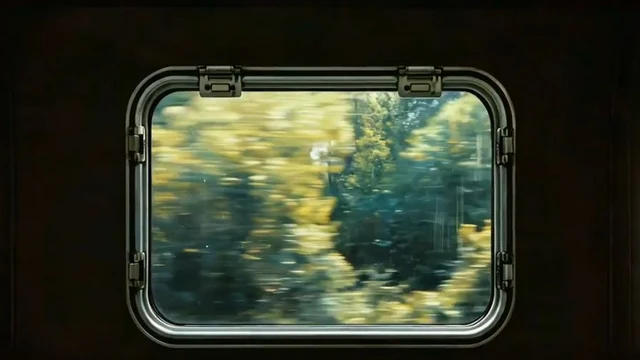
Keep the look, add movement
Animate a portrait, an illustrated character or a landscape.
Describe subject movement and camera movement separately.
For Reels or Shorts, start with a vertical image; image-to-video follows its framing.
AI product videos and reference-led scenes
Develop a short product reveal or campaign concept using reference media. Seedance 2.5 reference mode also lets you edit or extend an existing clip.
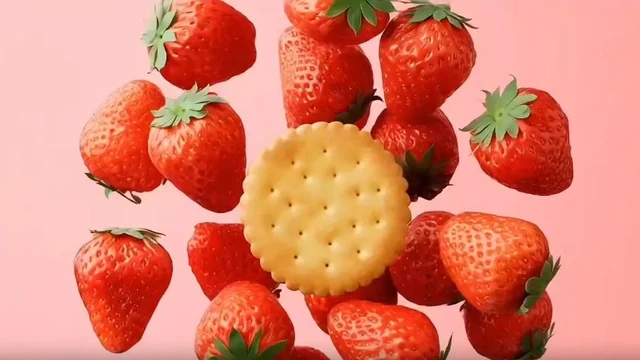
From visual concept to moving asset
Use images to guide the product, setting or visual style.
Use a reference clip when you need to guide motion, edit a scene or extend it.
Download the shot and combine it with captions, music or other clips in your video editor.
How to make an AI video
- 1
Choose how to start
Keep text-to-video selected, or choose image-to-video or reference-to-video in the Seedance model group.
- 2
Describe and set the shot
Add the required media and a motion prompt. Set the supported duration, resolution and audio options.
- 3
Check the price and generate
Confirm the credit total, generate, then play and download the finished clip from your creations.
Compare AI video generation models by workflow
Choose by the media you already have, the duration you need and the controls you want. Compare their supported inputs and settings below.
Compare model options
Seedance 2.5
- Inputs
- Separate text, image and reference modes
- Available controls
- Text/image modes: 4–30 seconds, 480p–1080p and optional audio. Reference mode also supports editing or extending a clip.
Kling 3.0
- Inputs
- Text and image inputs
- Available controls
- 3–15 seconds, optional audio and controls for multiple shots. Available inputs depend on the selected mode.
Veo 3.1 Fast
- Inputs
- Separate text-to-video and image-to-video models
- Available controls
- 4, 6 or 8 seconds; 720p, 1080p or 4K. Select the matching input mode in the model menu.
Vidu Q3 Turbo Image to Video
- Inputs
- Reference image and motion prompt
- Available controls
- 1–16 seconds, 540p–1080p and an audio option. Check the price for your settings.
Prices are not identical across models or modes. Check the quote after choosing your model and references; review motion and details before sharing a clip.
Set duration, resolution and sound before generating
The following settings apply to Seedance 2.5 text-to-video and image-to-video. Reference modes and other video models have their own supported inputs.
4–30 seconds
Choose a duration that fits the action. A shorter first draft helps keep the cost of exploring an idea down.
480p, 720p or 1080p
Select the output resolution in the editor. Check composition and motion before spending on a larger result.
Audio on by default
Describe the sounds you want. You can turn audio off if you will add your own soundtrack later.
A confirmed credit total
Check the price for your selected model, duration, resolution and inputs. Changes to the settings require an updated quote.
Text-to-video offers selectable aspect ratios. Image-to-video follows the first image. Reference video inputs may add to the cost; the confirmed total is shown before you generate.
Frequently asked questions
Choose the right video mode, understand the settings and control your generation cost.
Create short generated scenes from text, animate an image, or use reference media with a supported model. You can download the finished clip. It is a clip generator; it does not automatically assemble a complete edited video with captions, transitions and a publishing schedule.
More BabyVideo tools
Give your next scene a little motion
Choose a scene you want to make, then start with text, an image or references.
Open the video generator