
AI Image Generator
Create posters, product images and illustrations from text, or give an existing photo a new look. Start with GPT Image 2.5, with Nano Banana and FLUX available in the same workspace.


Why create with BabyVideo?
Explore different visual styles
Go from editorial portraits to illustrated covers and product concepts. Use the gallery to find a direction for your own project.
Several models, one workspace
Try GPT Image, Nano Banana or FLUX with your own brief. Switch models to compare their interpretation instead of opening a separate tool each time.
Keep creating with your result
Download your image for a post or design, use it as a reference for another edit, or upload it to the video generator to add motion.
Text to image AI for posters and illustrated covers
Turn an idea into a finished composition: an illustrated cover, a character portrait or a social post. Describe the look you want and where the image will be used.
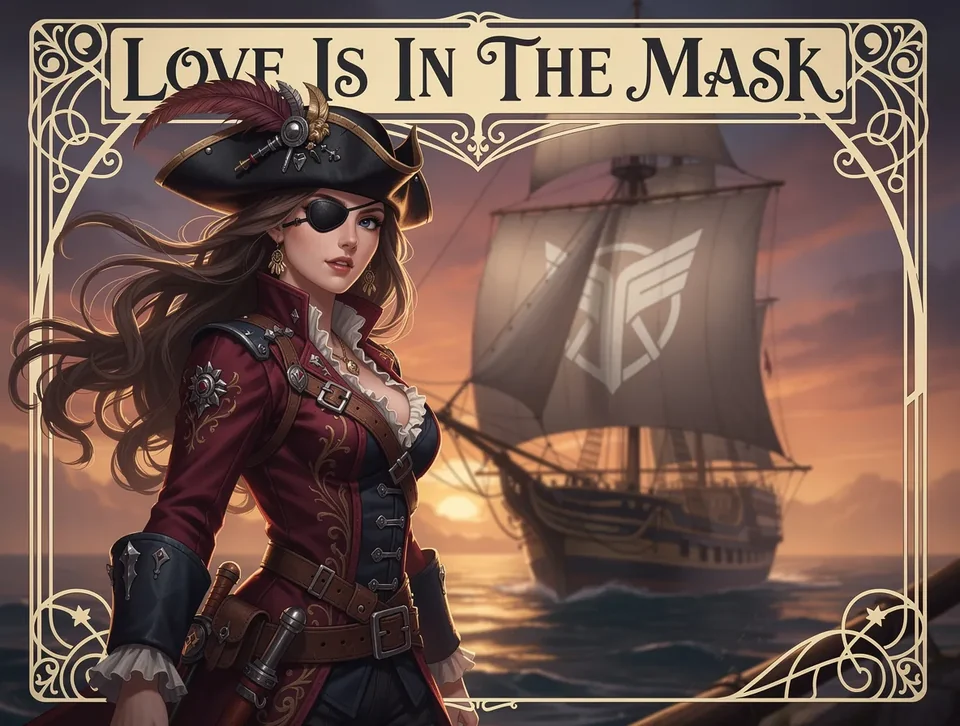
Composition, lettering and style
Build the scene around a subject, color palette and visual style.
Include a title or short headline for posters and cover concepts.
Choose a vertical, square or landscape format for the final placement.
AI image editor: change outfits, backgrounds and style
Give an existing photo a new direction with text instructions. The example shows a pet photo transformed with a costume, while keeping the original setting recognizable.

Make an edit you can compare
Use the original photo as a reference for the new image.
Describe the outfit, background or style you want to change.
Specify which details should remain, such as the subject’s markings or product shape.
AI product images for campaign concepts
Explore a product scene before arranging a shoot: styled packaging, seasonal colors or a new campaign setting. Use a product reference when the object already exists.
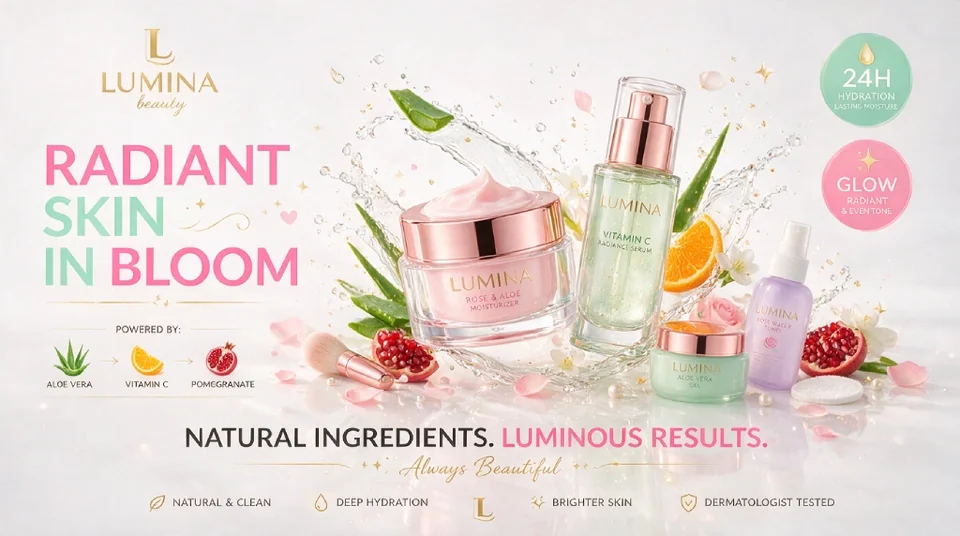
Show the product in context
Create backgrounds and lighting around your product idea.
Explore a coordinated palette for social posts and campaign visuals.
Check labels, colors and proportions against the actual product before publishing.
How to generate AI images
- 1
Describe the result
Write your image idea. For an edit, upload a photo and name the changes you want.
- 2
Set size and framing
Choose the aspect ratio and resolution. Review the credit total beside Generate.
- 3
Review and download
Open the finished image in your creations, inspect the details and download it.
Choose an image model for your task
The best starting point depends on your input and the controls you need. These models are available in the editor; the menu groups the full image catalog by family.
Compare model options
GPT Image 2.5 Flare
- Inputs
- Text and up to 15 reference images
- Available controls
- Default model. 1K, 2K or 4K; aspect ratio; 2, 3 or 5 credits per image.
Nano Banana
- Inputs
- Text and reference images
- Available controls
- Aspect ratio and PNG or JPG output. The separate Baby Grow Up tool also uses Nano Banana.
FLUX 2 Pro
- Inputs
- Text and reference images
- Available controls
- Aspect ratio, resolution and output format. Check the quote for your selected settings.
Qwen Image 2
- Inputs
- Text prompts
- Available controls
- Aspect ratio and negative prompt. Choose a Qwen Edit model in the menu if you want to edit an image.
Start with one image and compare the result against your brief. Models can interpret the same prompt differently; resolution alone does not determine quality.
Choose the image size and see the price first
GPT Image 2.5 Flare is selected by default. Set your output size before generating; other model families stay inside the model menu.
1K · 2 credits
A lower-cost starting point for exploring an idea. Each request produces one image.
2K · 3 credits
Choose more resolution when your composition and prompt are ready.
4K · 5 credits
Use a larger output for detail work. Inspect small text and facial details at full size.
Text or reference images
Leave image inputs empty to generate from text, or upload references for editing. Choose the supported aspect ratio in the editor.
These prices apply to Flare and Sunburst. Other models have their own settings and prices, shown before generation. Image credits are charged per image, not per second.
Frequently asked questions
Image inputs, model choices and credit costs explained.
Write a description of the picture you want, choose an image model and set its available options. For image-to-image editing, upload a reference and describe the changes. The selected model generates a new image for you to review and download.
More BabyVideo tools
Make the image you have in mind
Pick a visual direction and make it your own. Start with a prompt or one of the gallery ideas.
Open the image generator