Cartoon Baby Generator
Cartoon styles are more forgiving than photoreal. Start with a clear photo and try 2–3 styles to find the best fit for your baby’s face.
Turn a baby photo into a cartoon with a specific use in mind: a small profile picture, a birthday card or a character you can animate later. The right crop and style matter more than adding a long list of effects.
Open the toolQuick Steps
Follow the steps from preparing your inputs to checking the result.
- 1Open the Cartoon Baby tool.
- 2Upload a clear baby photo (one face, good lighting).
- 3Pick a style (anime/chibi/3D/etc.).
- 4Generate 2–3 variations.
- 5Save the best result and reuse it as an avatar or thumbnail.
- Pick a style preset or write a custom style prompt.
Choose the layout before the art style
- A recognizable avatar
- Start with a clear head-and-shoulders photo and square 1:1 framing. Leave room around the hair for a circular profile crop. Chibi or soft 3D can read well at small size; compare the eyes, hairline and smile with the source.
- A card or invitation
- Try a portrait ratio such as 2:3 or 4:5 with a calm background. Leave open space for the name and date, then add that text in a layout editor after generation. Watercolor or pastel direction can keep the image from competing with the lettering.
- A sticker or moving character
- For a sticker-style image, choose a compact pose and a clear outline. For a later full-body dance, start with a photo that shows the arms, legs and feet. This tool produces a still image; a sticker preset does not guarantee transparency or an animated file.
Test one style at a time
Sign in and upload one JPG, PNG or WebP up to 10 MB. Keep the eyes and mouth unobstructed, and remove unnecessary background with a crop before uploading. Choose a preset from the visible row or open View all styles. The current model is GPT Image 2.5 Flare; check the displayed credit cost before each attempt.
- To compare presets
- Leave Custom Style empty and keep the same photo and ratio. Try two or three styles as separate generations. Judge which keeps the face readable; changing the photo, style and crop together makes it difficult to identify an improvement.
- To write a custom style
- Custom text replaces the preset description. Include the drawing technique, colors and background you want; do not assume the selected preset is added to it. Clear the custom field to use a preset again.
- To keep the test repeatable
- Leave Enhance Prompt off when you want your exact wording. Enabling it can rewrite your custom description. Save the original photo and text outside the form: both clear when you submit a generation.
Soft card illustration
Soft watercolor illustration of the baby in the reference photo, warm cream and muted peach colors, light paper texture, simple pale background with open space above the head, no lettering.
Start with a portrait layout. Add the actual name and date in an editor so you can control spelling, font and placement.
Simple profile picture
Soft 3D cartoon portrait of the baby in the reference photo, keep the hairstyle and smile recognizable, centered face, clean light-blue background, room around the head, no props or lettering.
Start with 1:1. These are suggested instructions, not the recorded prompts for the archived examples below.
Tutorial Examples (with prompts & settings)
Compare the examples, their available inputs and the settings recorded with them.
Cartoon baby style (example 1)
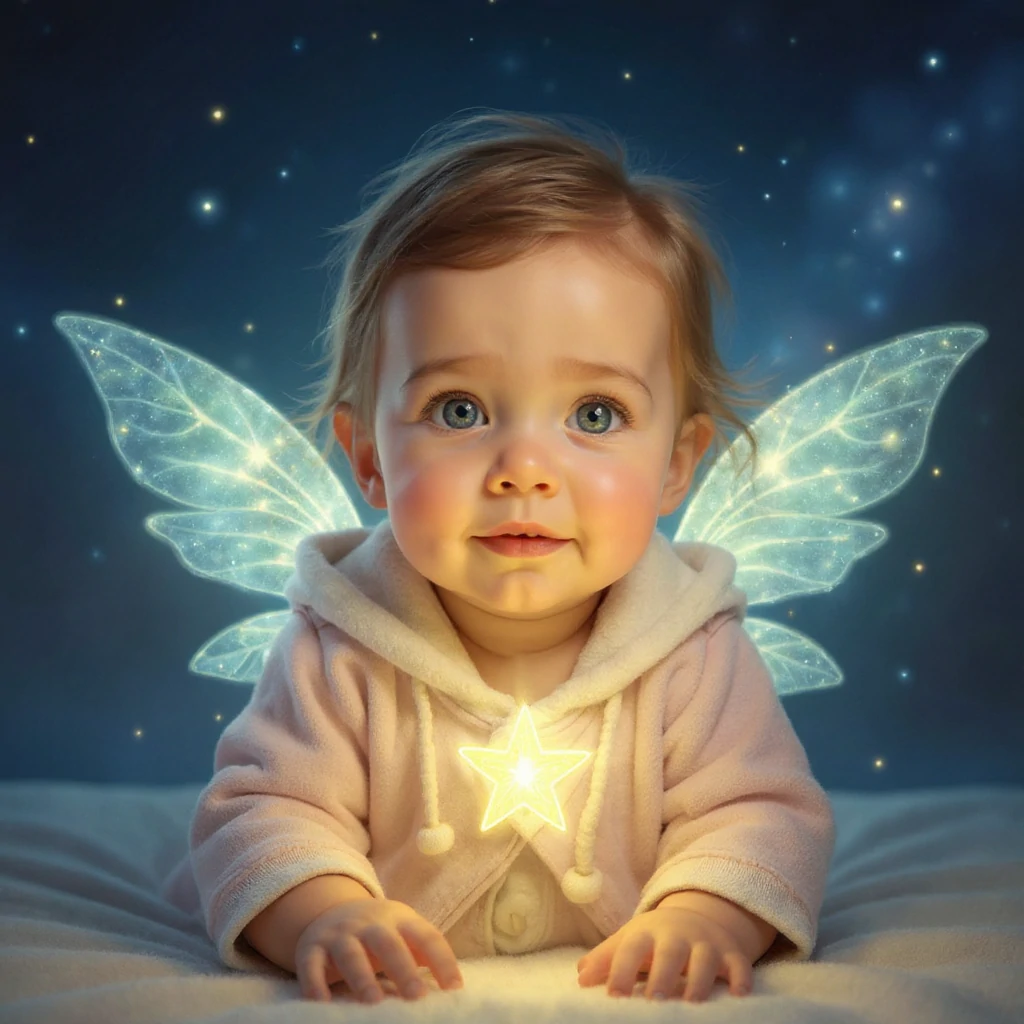
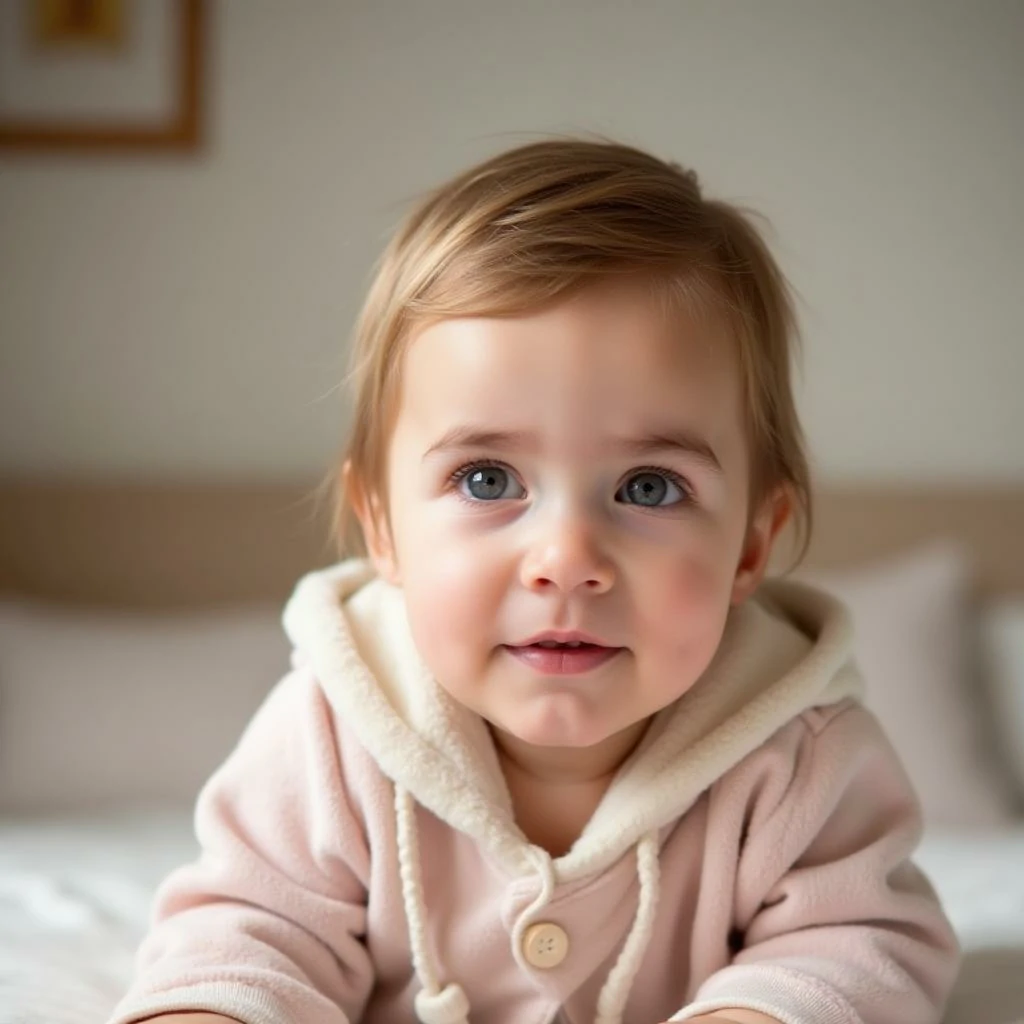
Compare the source photo and each illustrated result. A style changes the rendering and may also change facial details; choose the version that suits your avatar or artwork.
- Star Sprite: light and fantasy details
- The pale pink hooded outfit remains recognizable, while glowing wings, a star and a dark blue background change the scene. Compare the face first, then the outline of the wings. A tight circular avatar crop would hide much of this effect.
Cartoon baby style (example 2)
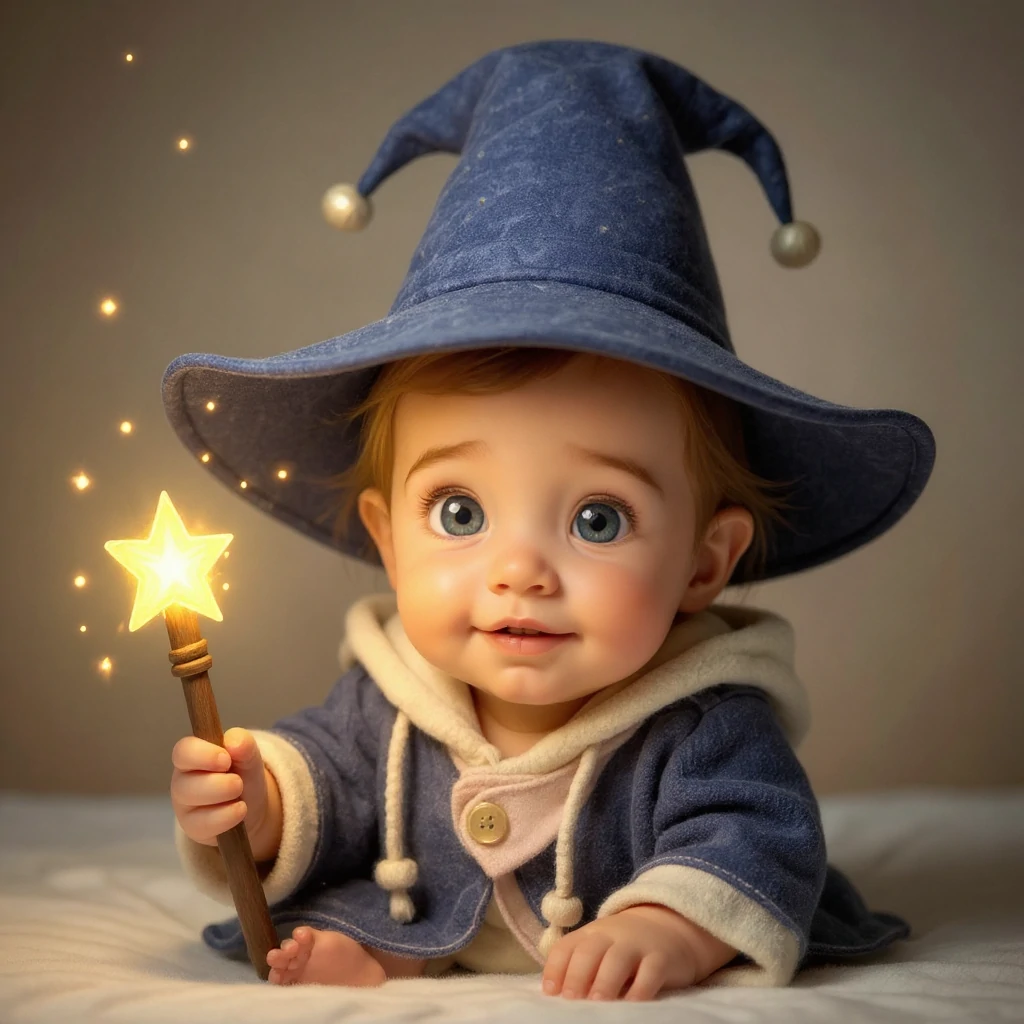
Compare the source photo and each illustrated result. A style changes the rendering and may also change facial details; choose the version that suits your avatar or artwork.
- Magic Apprentice: a new costume and pose
- The large blue hat and star wand add a story to the same source photo. Check the hand around the wand, visible toes and hat edges, not just the eyes. Leave room for the hat when cropping; this is more than a color filter.
Cartoon baby style (example 3)
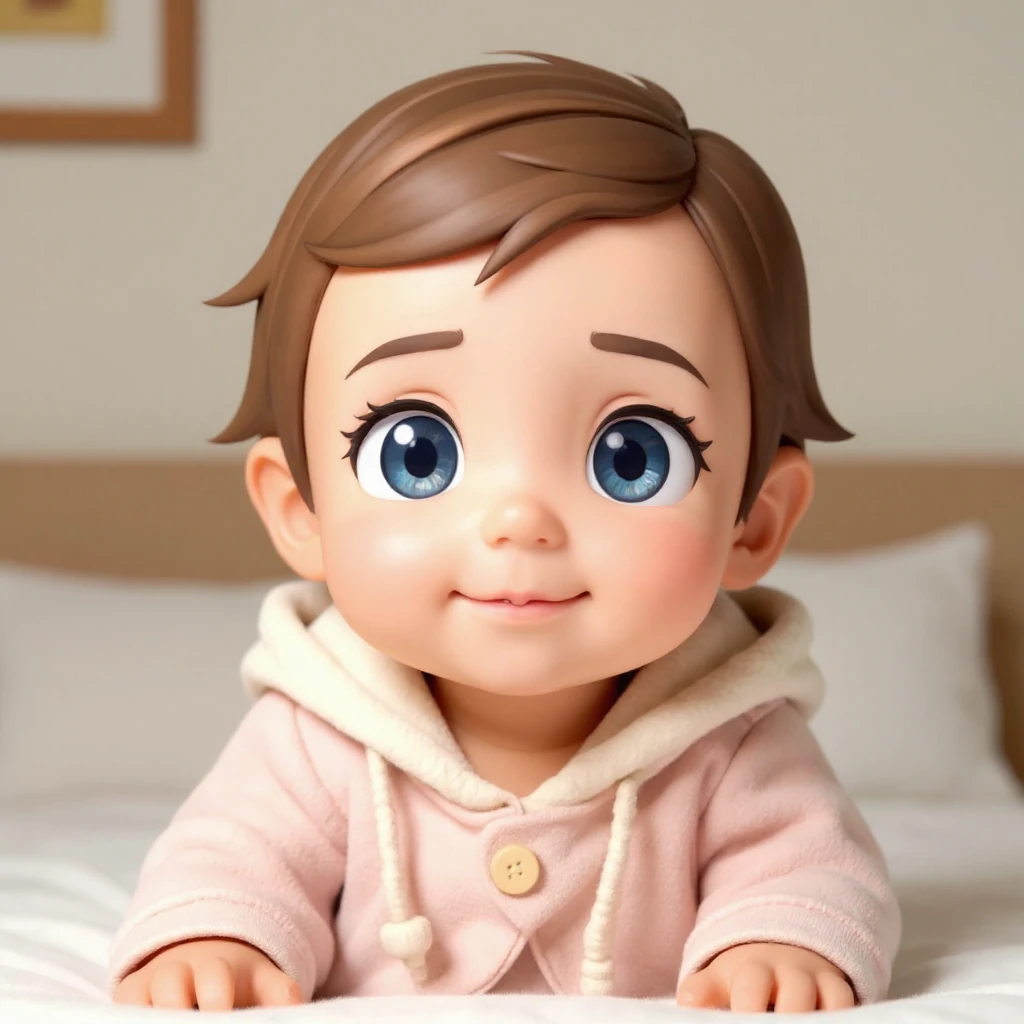
Compare the source photo and each illustrated result. A style changes the rendering and may also change facial details; choose the version that suits your avatar or artwork.
- Chibi 3D: stronger stylization, simpler scene
- The pink outfit and indoor setting stay closer to the source, but the eyes become much larger and the hair and skin smoother. It is useful for comparing a compact avatar with the two fantasy scenes. Bigger cartoon eyes do not mean better identity preservation.
Compare at full size and at the size you will use
All three archives use the same source image, which makes the style differences easy to see. Their original prompts and model settings are not recorded, so the suggestions above are starting points rather than exact reproduction recipes.
- The face becomes generic
- Return to the original photo. Choose a less exaggerated style and ask to retain the visible hairstyle and expression. Do not repeatedly restyle a generated cartoon when you want to compare against the real source.
- Hands, accessories or edges look wrong
- Inspect fingers, hat outlines and hair against the background. Simplify the custom description, remove unnecessary props or try a clearer source. If the source hides a hand, the model must invent what is missing.
- The crop cuts off important details
- Choose a ratio that fits the destination and keep space around the subject. Check a small circular crop for an avatar and a full rectangular layout for a card. Save the full result before making those crops elsewhere.
Finish the image for its destination
Open the completed result and download it. A PNG file can still contain an opaque background; use an image editor to remove it if you need a transparent sticker, then inspect the hair and clothing edges. For a printed card, check the downloaded pixel dimensions and the printer’s required size instead of assuming that an HD label fits every print.
Keep the image before adding captions or a border. To animate it, upload the selected result to a video workflow and start with a small motion. Cartoon Baby itself does not export a dance, GIF or video.
- Animate the cartoon portrait
Use the saved image as the starting appearance.
- Give a full-body character a dance
Prepare a motion reference as well as the character image.
Tips
- Simple backgrounds usually produce cleaner cartoon edges.
- Try multiple styles—some faces look better in certain aesthetics.
- If results look messy, tighten the crop to focus on the face.
- For a custom style, describe the drawing technique, colors and background. Keep the photo fixed while comparing styles, then inspect the face and edges before downloading.
FAQ
Can I use the output as a profile picture?▼
What photo works best?▼
How do I get a more consistent style?▼
Does custom text combine with the selected preset?▼
Will a sticker style download with a transparent background?▼
Can I make a consistent set of cartoon baby pictures?▼
Ready to generate?
Choose your own inputs and check the available settings before generating.