Baby care packaging
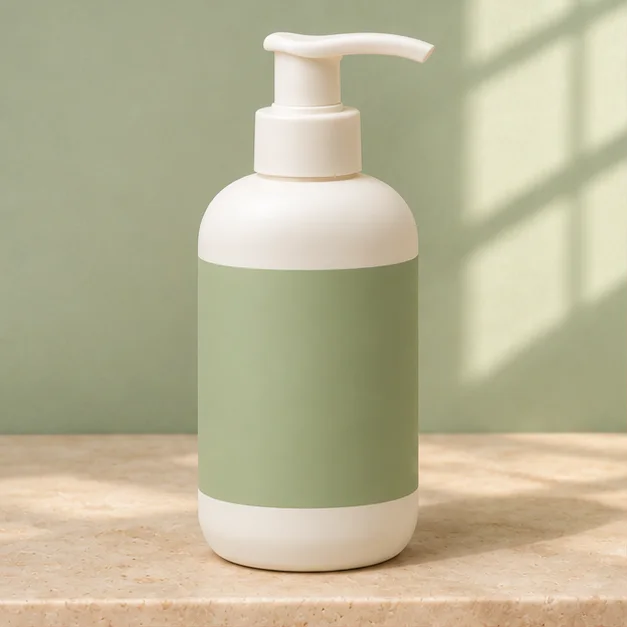
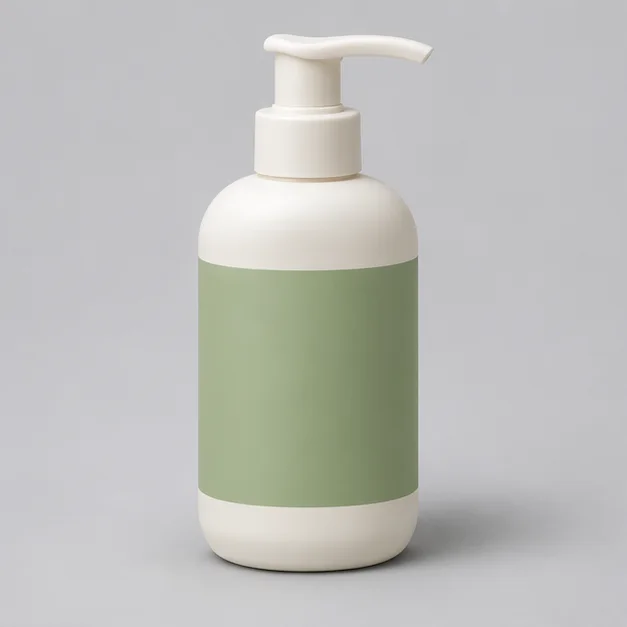
Keep the bottle, pump and label visible against sage walls and a warm stone surface.
From feeding sets to first outfits: explore lighting, backgrounds and compositions around the product you already sell.
Compare the original with a styled scene, then use the same direction with your own product.
Keep the bottle, pump and label visible against sage walls and a warm stone surface.
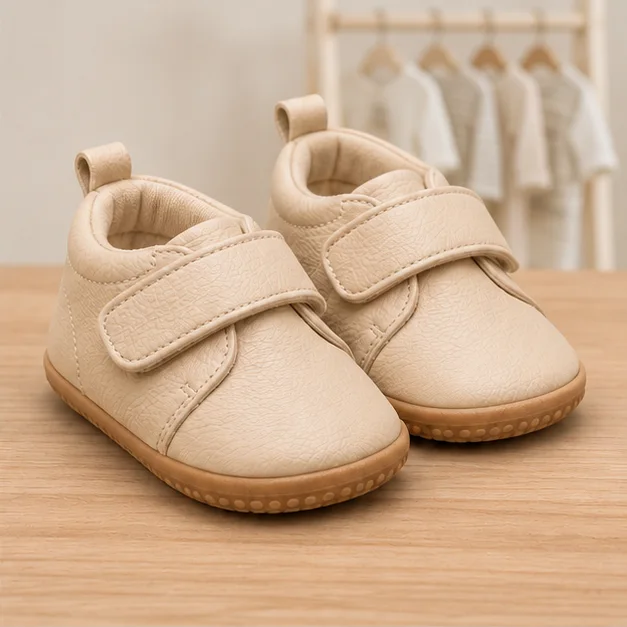
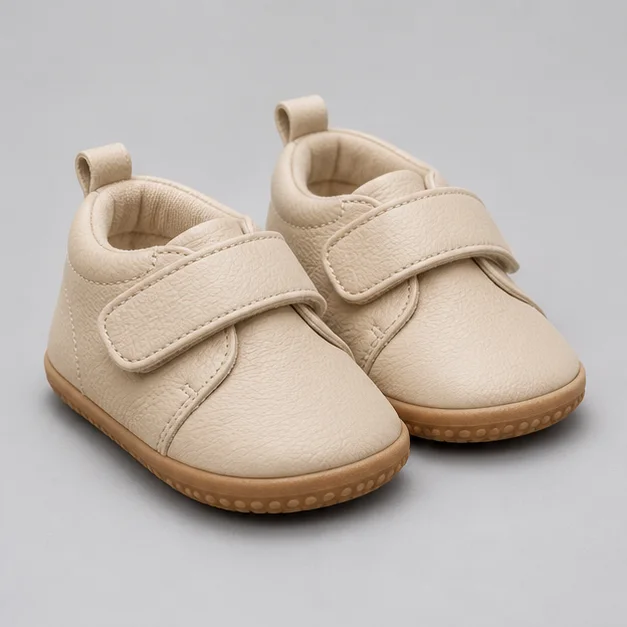
Show the pair, fasteners and sole texture in a warm wardrobe setting.
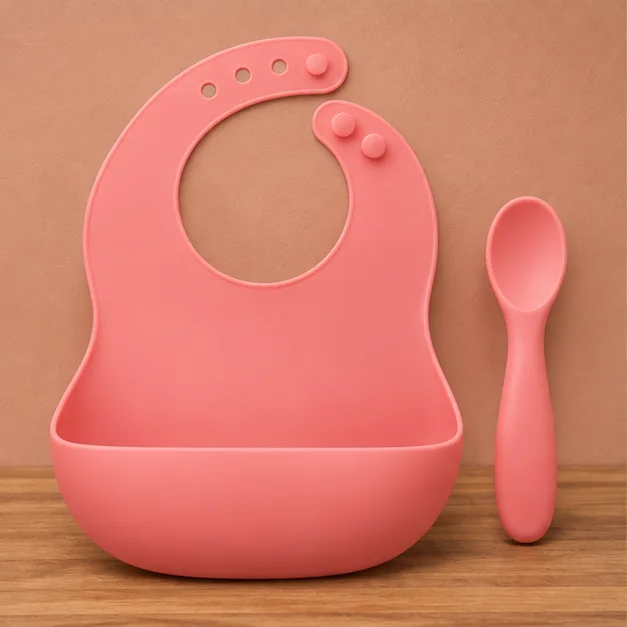
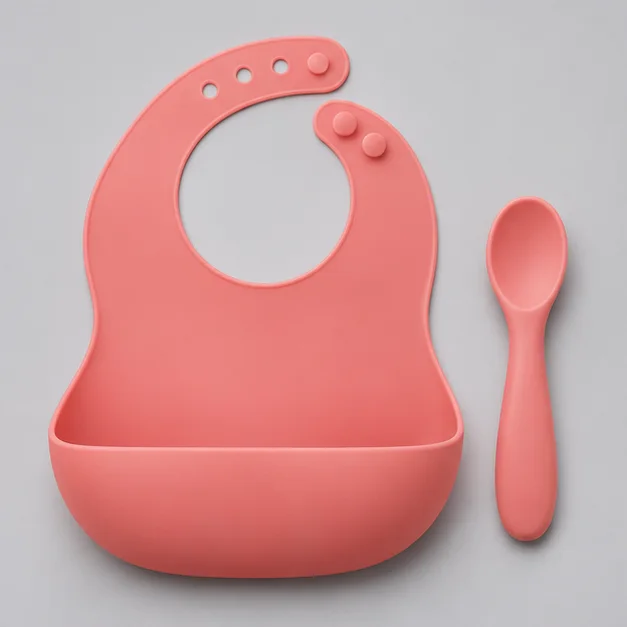
Pair a warm wood surface with terracotta tones while keeping the complete bib and spoon visible.
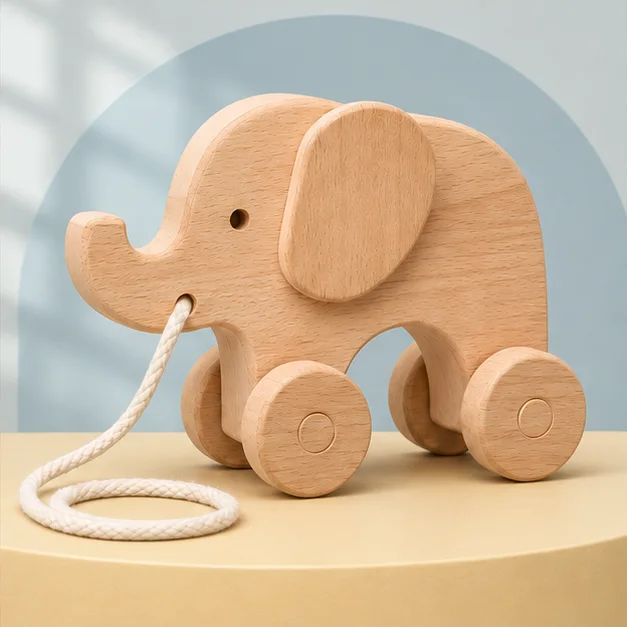
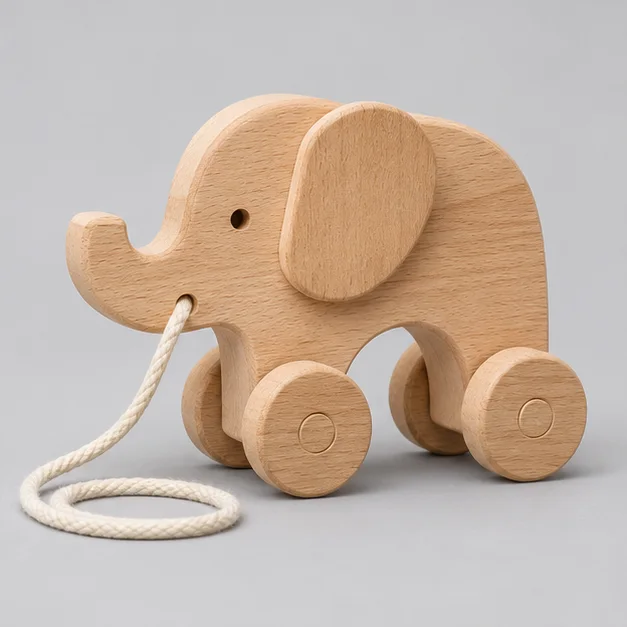
Frame the wood grain and small details with a cream platform and a soft blue arch.


Explore a sunlit kitchen scene for a feeding set. The new surface, light and background give the same product a different campaign direction.


Try a peach studio flat lay for a collection launch or social post. Compare the print, buttons and garment shape with the original photo.


Use a simple arch and a coordinated palette to frame a wooden toy. Keep the product as the focal point, with room around it for your later layout.
Creative examples show possible directions. AI results vary; review product details before using an image or clip in a listing or ad.
Explore how a change of setting, light and color can give the same product a new role in your collection.
Warm peach tones and a simple backdrop keep the packaging at the center of the image.
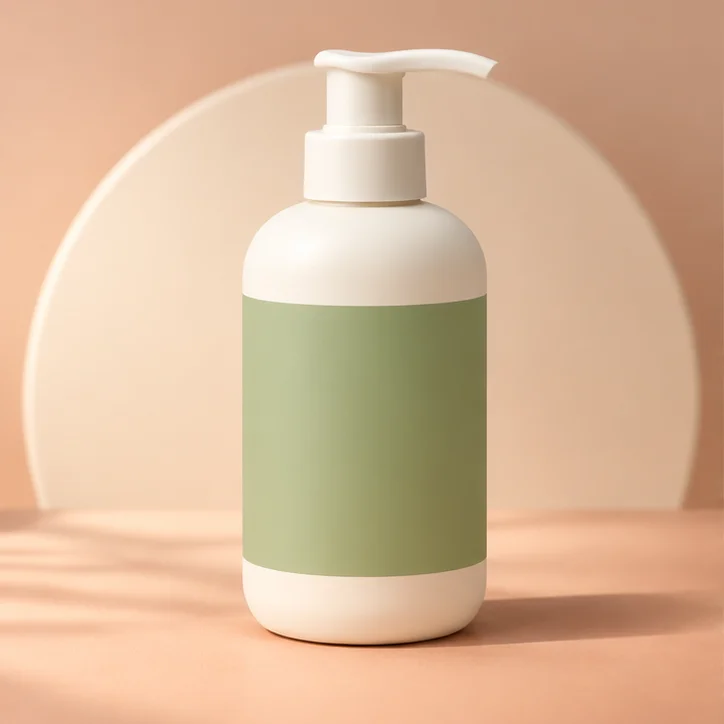
Try a white or neutral background with the complete product visible. Check the final image against your marketplace's current main-image rules.
Create flat lays and collection images that give the fabric, print and fasteners room to be seen.
Try a nursery shelf, warm kitchen or bath-time setting around the same item, without booking a new shoot.
Explore campaign colors and leave room for your own headline, price and call to action.
Choose a composition before generating. A shop grid, a social feed and a website banner need different amounts of space around the product.
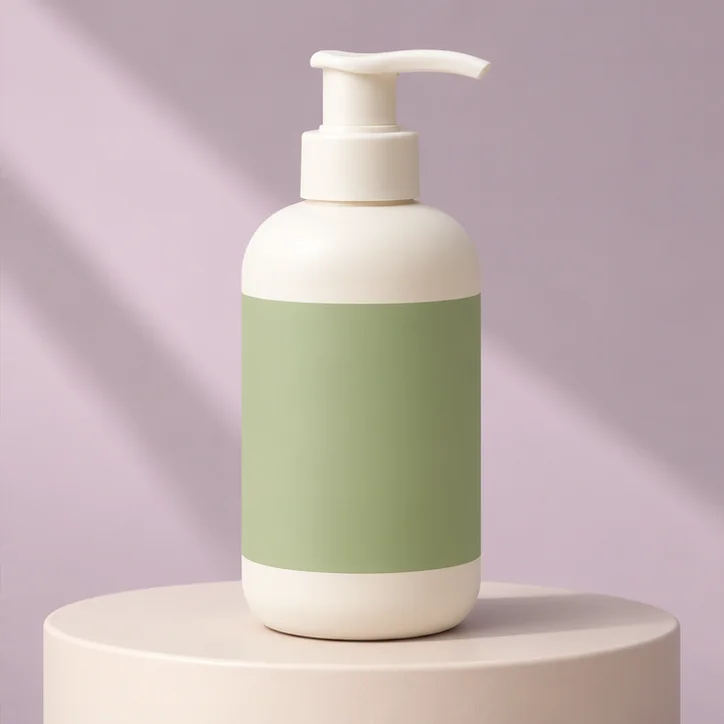
A centered, complete product with comfortable margins for a consistent shop collection.
A taller composition for a launch post, with room for your later headline or offer.
A wider scene for a website feature, product collection or landscape campaign layout.
Give the AI a useful brief for the item you sell, then compare the finished image with your original.
Let the cotton, print and fasteners do the talking. Ask for a flat lay or soft side light without redesigning the garment.
A bib and matching spoon should stay together in a new scene. Describe exactly what belongs in the image and keep the setting simple.
Upload the product or campaign photo you want to use.
Soft side light, a peach studio background and space around the product. Keep its colors, print and every matching piece unchanged.
Pick a scene, add the details that matter and describe the result you want.
Create one result, compare its details with your original and download the version you approve.


Found a scene you like? Use the finished image as the starting frame for a short product clip.
Make a product videoThe default setup creates one 1K PNG image for 3 credits. Other models have their own credit costs, shown before generation. Choose the aspect ratio in the editor. New accounts receive 10 trial credits once on first sign-in.
Default: 3 credits per imageIt uses a photo of the actual product as a reference to generate a new commercial scene. BabyVideo focuses on baby clothing, feeding items, toys, nursery accessories and related products. You supply the product and creative direction.
Yes. The product video tool animates an uploaded image into a short shot with your camera and sound instructions. It does not assemble a complete ad with guaranteed captions, a presenter or a fixed CTA. Add exact advertising text in your video editor.
The instructions ask the AI to preserve the product, but exact identity and lettering are not guaranteed. Compare shape, color, logos, print, parts and packaging with the original. Do not use a result that misrepresents the item for sale.
Yes. Flat lays, packshots and empty nursery scenes work with the product-photo workflow. You do not need to upload a baby's photo. A new background does not prove how a product performs or whether it is safe.
You are responsible for rights to uploaded photos and branding, and for checking the output and your marketplace or ad platform's rules. BabyVideo does not certify product claims or guarantee listing approval.
BabyVideo uses credits and offers one-time credit packs. New accounts receive 10 credits once on first sign-in, valid for 3 days. There are no daily or recurring free-credit rewards. The cost is shown before generation.
Yes. Choose White background in the scene selector and describe a centered product with natural contact shadows. Review edges, labels and product details, then check the image against your marketplace's requirements.
Reuse the same scene, palette, light and aspect ratio for each garment, generating one image at a time. Include the fabric, print and fasteners in your instructions. Compare every result with its own source photo; matching style is not a guarantee of identical product details.
Yes. Describe where the product should sit and which side should remain open. Add exact prices, offers and brand typography in your design editor after generation, so the final advertising text stays under your control.
BabyVideo’s AI product photography tool creates white-background photos, nursery scenes and campaign images from a photo of the item you sell. Choose a scene and aspect ratio, then add the details to preserve. It suits sellers who want to explore new product settings; review labels and product details before publishing.Create product photos
Turn a product photo into studio shots, nursery scenes and social ad images for your baby brand. Upload your product, choose a scene and create a new image.
Create a product photo